
Only the owner of the primary organization sees this section.
Multi-organization is available on the Builder and Business plans. Enterprise accounts keep working as they do today.
How it works
- One account, several organizations: your email and password are the same everywhere.
- You work in one organization at a time: the active organization defines what you see and what you can do — projects, workflows, conversations, metrics and billing always belong to that organization.
- Each session has its own active organization: if you have the platform open in two browsers or devices, switching organizations in one does not affect the other.
- Your role is set by whoever invites you: the role you get in that organization is chosen when the invitation is sent.
- Roles and permissions per organization: you can be an Administrator in one organization and an Operator in another. The sidebar adapts to the role you have in the active organization.
Your own organization
Your own organization is created when you sign up. It is your main space and it has two rules:- You cannot leave it. You can only close it, and that is the super admin’s decision.
- It is the primary one. The additional organizations you create depend on your plan’s quota; every other one is an access you received through an invitation.
The organization picker
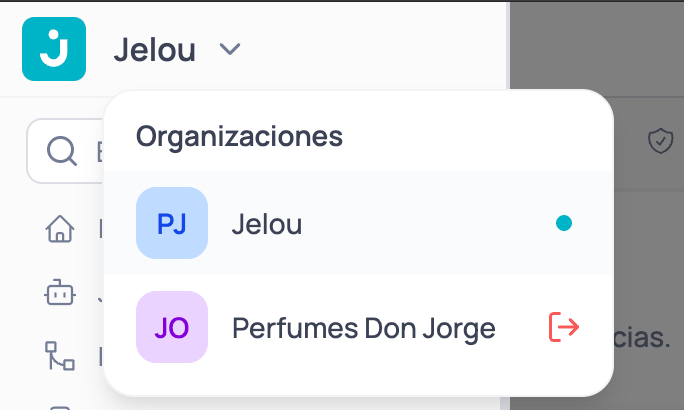
The picker shows the name of the active organization. Where it appears depends on your sidebar:- Expanded sidebar: next to the Jelou logo, at the top.
- Collapsed sidebar: in the header, to the left of the breadcrumb. Long names are truncated with ”…”; hover over it to see the full name.
Switching organizations
The organization picker lists every organization you belong to and lets you switch between them without signing out. When you switch, the platform loads the new organization’s content: anything you had in progress in the previous one stays saved there, but you no longer see it until you go back.What happens when you switch
- Active cases: if you are an operator and have open cases in the current organization’s Inbox, the platform warns you: “You have active cases in this organization. If you switch, you’ll stop attending them here (they’ll stay assigned to you). Do you want to switch anyway?” Confirm with Switch organization or go back.
- Connection status: your operator status (online or offline) is separate in each organization. When you switch you see the status you have in the new organization; offline by default.
- Brain project: the selected project is cleared, so Studio doesn’t open a project from the previous organization.
- Sidebar: sections are enabled based on your role in the active organization. The ones your role doesn’t allow (for example, Studio, Campaigns or Settings for an Operator) appear disabled.
- If the switch fails: you’ll see “We couldn’t switch the organization. Please try again.” and you stay in the current organization.
Creating an organization
If your account is eligible, you can create a new organization from the picker. Eligibility depends on your plan: if a plan change makes you eligible, the Create organization button appears without reloading the page.1
Open the picker
Click the name of the active organization, then Create organization.
2
Enter the name
Type the Organization name. It is required and cannot be empty or only spaces; otherwise you’ll see “Enter a name for the organization”.
3
Create the organization
Click Create. You enter the new organization automatically and the platform takes you to Home.
- If the new organization has an onboarding, you complete it first and, when you finish, you’ll see a message confirming that the organization was created and you’re in.
- If the organization can’t be created, the dialog stays open and shows the reason (for example, a plan restriction) or, if there is no specific reason, “We couldn’t create the organization. Please try again.”
Inviting people to your organization
Invitations are sent from Settings → Users, just like before. With multi-organization, the invited person does not lose their own account: they gain an additional access. Before inviting, keep in mind:- The role is mandatory: an invitation cannot be sent without assigning one.
- Your plan must have available seats. Seats are checked at the moment the person accepts: if none are left, the acceptance fails and you need to free a seat or upgrade your plan.
What happens when the person accepts
The flow depends on whether the invited email already has a Jelou account:- New email
- Existing email
The person completes a regular sign-up: their details, their password and the name of their organization.When they finish they have two things: their own organization and access to yours. From then on they can switch between both using the organization picker.
When an invitation cannot be sent
Invitations from different organizations are independent from each other. The same person can have several pending invitations from different organizations at the same time and accept them all.
Resending, revoking and expiring
- A pending invitation can be resent once. If you try to resend it again, the platform does not send it and tells you why: it was already resent and is still pending, it was already accepted, it was revoked or it expired.
- A revoked or expired invitation can no longer be accepted. Send a new one. If the person opens that link, they’ll see “This invitation link is invalid or has expired. Please, contact your administrator.”
See user and invitation management
Learn how to invite people, edit users and track the status of your invitations.
Invited members in Settings → Users
In Settings → Users the list also includes invited members: people whose own organization is a different one and who joined yours through an invitation. They also appear in team pickers, in Monitoring’s operator filters and in the tab counts. Because their account belongs to another organization, what you can do with them is more limited:For users whose own organization is yours, Deactivate works as always and affects their whole account.
Leaving an organization
You can leave any organization you were invited to. The option appears in the organization picker, only on organizations you joined through an invitation. Before removing your access, the platform asks you to confirm.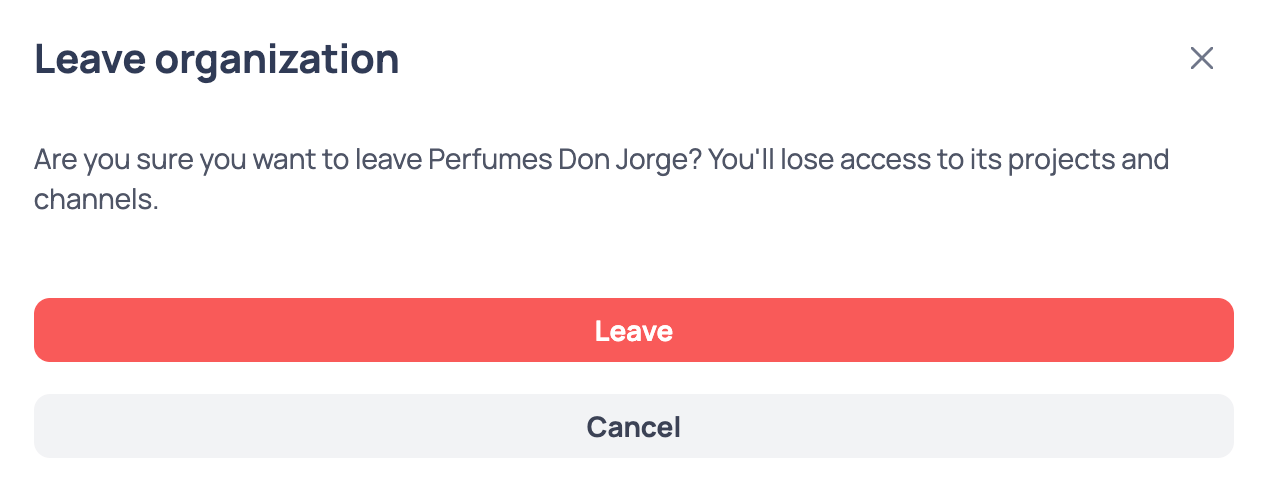
- You cannot leave your own organization. If you try, the platform blocks it.
- When you leave, you lose access immediately and your session goes back to your own organization.
- You can be invited again later.
Removing a member from your organization
The super admin can remove any invited member.1
Remove the member
Access is revoked instantly. If the person was working in your organization at that moment, their session automatically goes back to their own organization.
2
The person receives an email
They are notified by email that they no longer have access to your organization, so they don’t find out when trying to sign in.
- Removing someone does not delete their account or their own organization. They only lose access to yours.
- You can invite them again whenever you want: there is no block list.
Two-factor authentication across organizations
If you are invited to an organization that requires two-factor authentication (2FA), you must set it up in order to accept the invitation. The platform shows you the setup step and does not let you continue until you complete it.- The invitation email states whether the organization requires two-factor authentication.
- You cannot turn it off on your own. If you lose access to your verification method, contact your organization’s administrator.
Deleting an additional organization
You can delete an additional organization from the organization picker, as long as it has no active paid plan. The primary organization cannot be deleted.- To confirm, you must type the organization’s name.
- If you delete the organization you are in, the platform takes you to your primary organization.
Frequently asked questions
Can I have more than one organization of my own?
Can I have more than one organization of my own?
Your primary organization is a single one, the one created when you sign up. In addition, your plan defines how many additional organizations you can create; every other one is an access received through an invitation.
I was invited with an email I already use in Jelou. Do I need to create another account?
I was invited with an email I already use in Jelou. Do I need to create another account?
No. You sign in with the credentials you already have and the new organization appears in your picker. No extra account or password is created.
If I switch organizations, do I lose what I was working on?
If I switch organizations, do I lose what I was working on?
No. Each organization keeps its own content. When you switch you stop seeing the previous one’s content, and it is available again as soon as you go back to it.
What happens if I'm removed from an organization while working in it?
What happens if I'm removed from an organization while working in it?
You lose access immediately and your session goes back to your own organization. You also receive an email letting you know.
What happens when I downgrade?
What happens when I downgrade?
The notice tells you what happens at the end of the cycle: which seats and additional organizations are kept and which become inactive. You choose which ones to keep. The change is applied when the cycle closes and you see a confirmation that it was scheduled.
What happens when I upgrade?
What happens when I upgrade?
Suspended organizations are reactivated and the platform shows you which ones were reactivated.
What happens to a suspended organization?
What happens to a suspended organization?
It becomes read-only: you can see the information but cannot change anything. No data is lost.
What happens to members when an organization is suspended?
What happens to members when an organization is suspended?
They are deactivated and receive a notification email. As owner you keep read access.
What happens to members when an organization is reactivated?
What happens to members when an organization is reactivated?
They must be invited again; it is not automatic.
What happens to organizations with a paid plan?
What happens to organizations with a paid plan?
They keep working until the end of their period. Those exceeding the quota are suspended when the cycle closes.
Does changing the plan of a suspended organization recover it?
Does changing the plan of a suspended organization recover it?
No: the quota comes from the primary account. The plan card appears disabled with a notice pointing to where to fix it.