
Access Secrets
Go to Settings > Secrets in the side menu.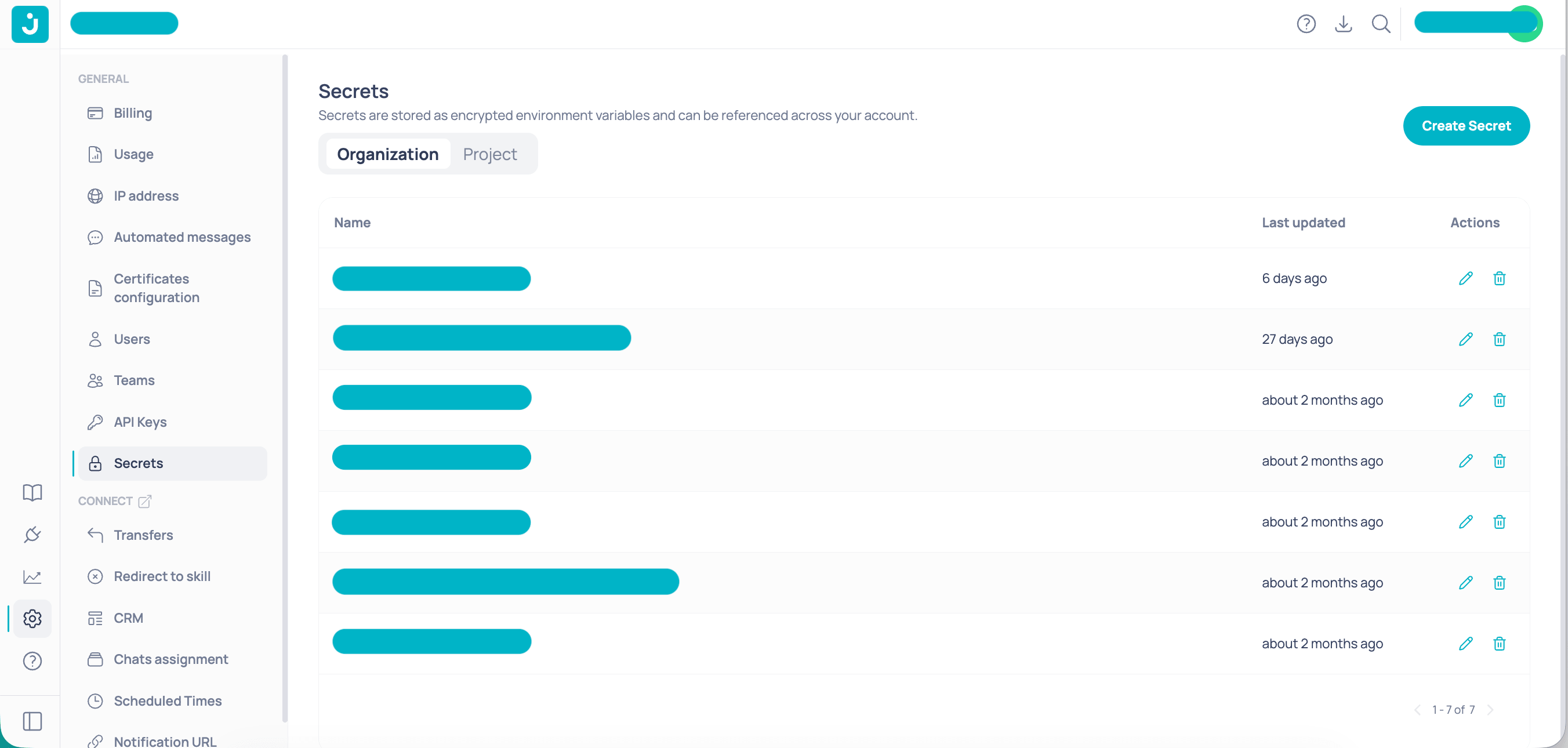
Settings > Secrets view
Create a Secret
1
Open the create form
Select Organization or Project depending on the scope you need, then click Create in the top-right corner.
2
Fill in the fields
The form requires two fields:
- Name: Secret identifier. Only uppercase letters, numbers, and underscores are allowed (
A-Z,0-9,_). The field automatically converts text to uppercase. - Value: The sensitive credential. It is masked; use the visibility icon to temporarily reveal what you type.
3
Confirm creation
Click Create. The Secret appears in the table with its name and last updated date.
Edit a Secret
To update the value of an existing Secret, click the edit icon (pencil) in the corresponding row. In the edit modal:- The Name field is disabled and cannot be changed.
- Enter the new Value and confirm.
Delete a Secret
Click the delete icon (trash) in the row of the Secret you no longer need. A confirmation dialog appears with the Secret name highlighted.Use Secrets in workflows
Reference any Secret in a node configuration field with this syntax:OPENAI_API_KEY, use it in an HTTP node authentication field like this:
Permissions
Users with read-only access can view names and updated dates, but not values or management actions.
Best practices
- One Secret per credential: do not reuse the same Secret for different integrations. If one key is compromised, you can rotate it without affecting other workflows.
- Use descriptive names: include the service and key type in the name, for example
STRIPE_SECRET_KEYorOPENAI_API_TOKEN. - Prefer Organization for shared credentials: avoid duplicating the same Secret across multiple projects.
- Rotate periodically: update the Secret value when rotating keys in the external service, without changing workflows that already use it.