API keys allow you to authenticate requests to the Jelou API from external applications or services. With them you can send messages, manage campaigns, query conversations, and more, programmatically.

Accessing API Keys

To manage your API keys, go to Settings > API Keys in the side menu.
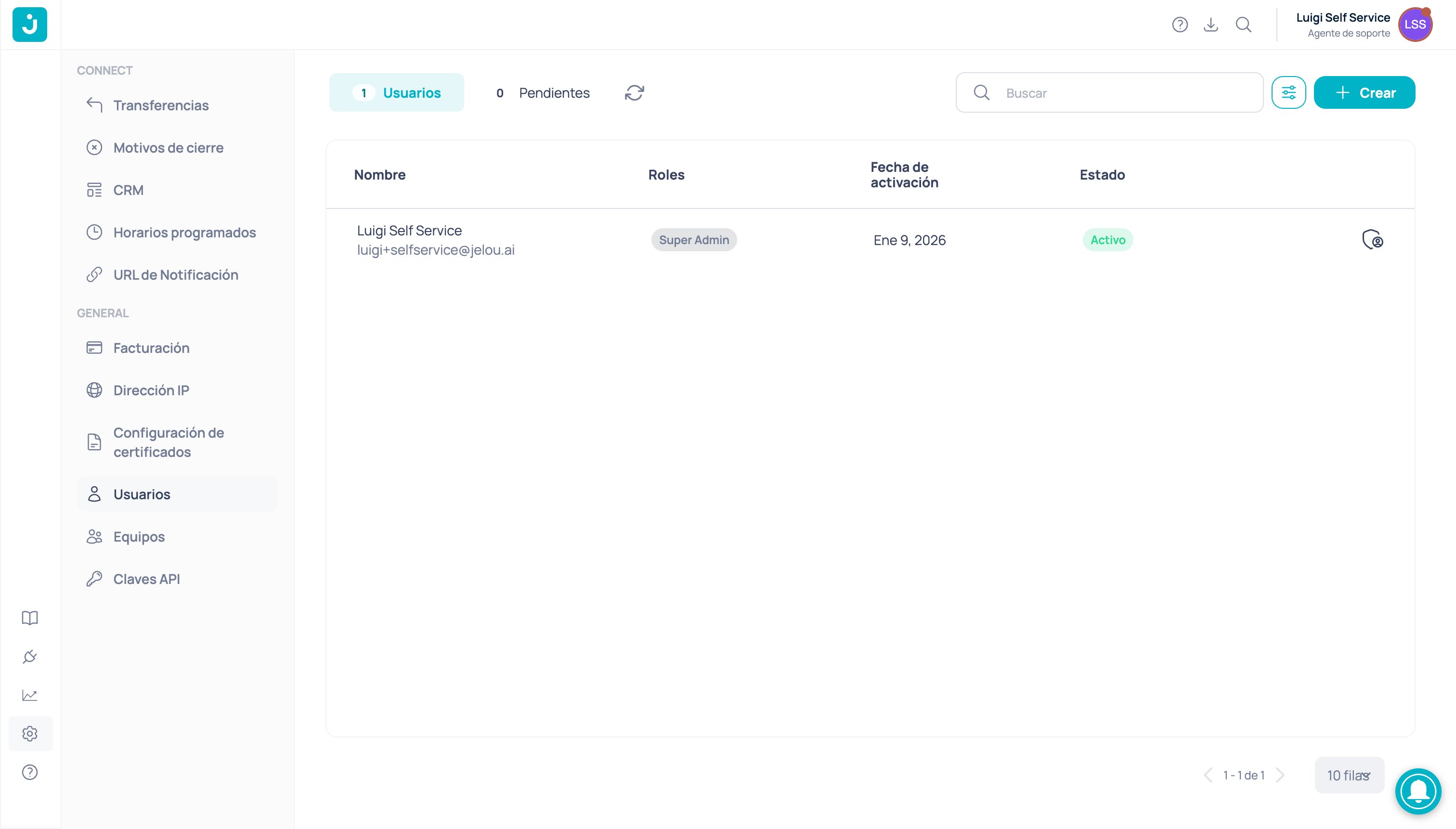
Settings side menu showing the API Keys option under the General section
You will see a table with all existing API keys in your account, including:
  • Key: Partially hidden identifier of the key
  • Creation date: When it was generated
  • Actions: Available options for each key
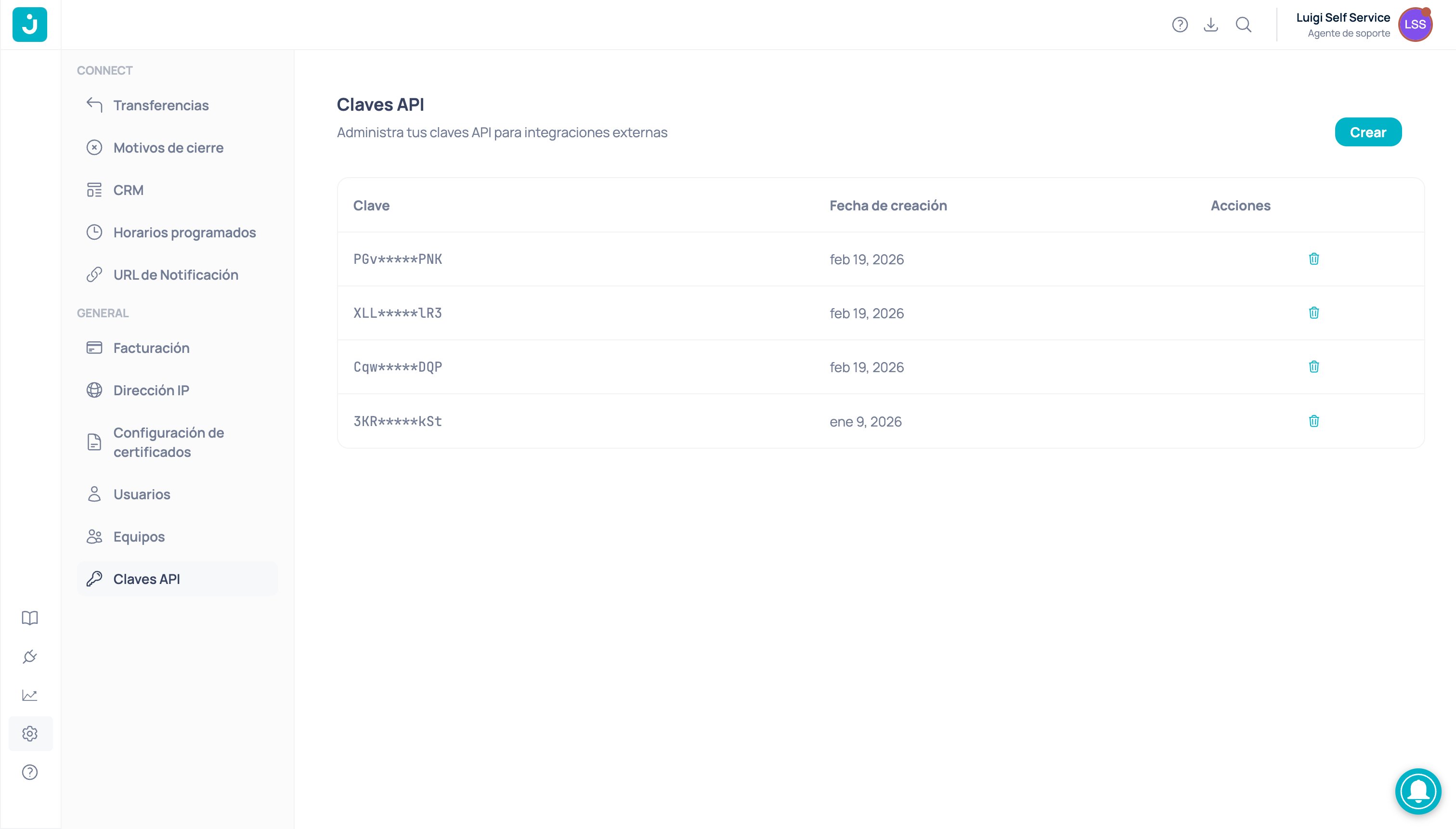
API Keys table view showing existing keys with their creation date and available actions

Create an API key

1

Start the creation

Click the Create button located in the upper right corner of the page.
2

Confirm the creation

A confirmation dialog will appear. Click Create to generate the new key.
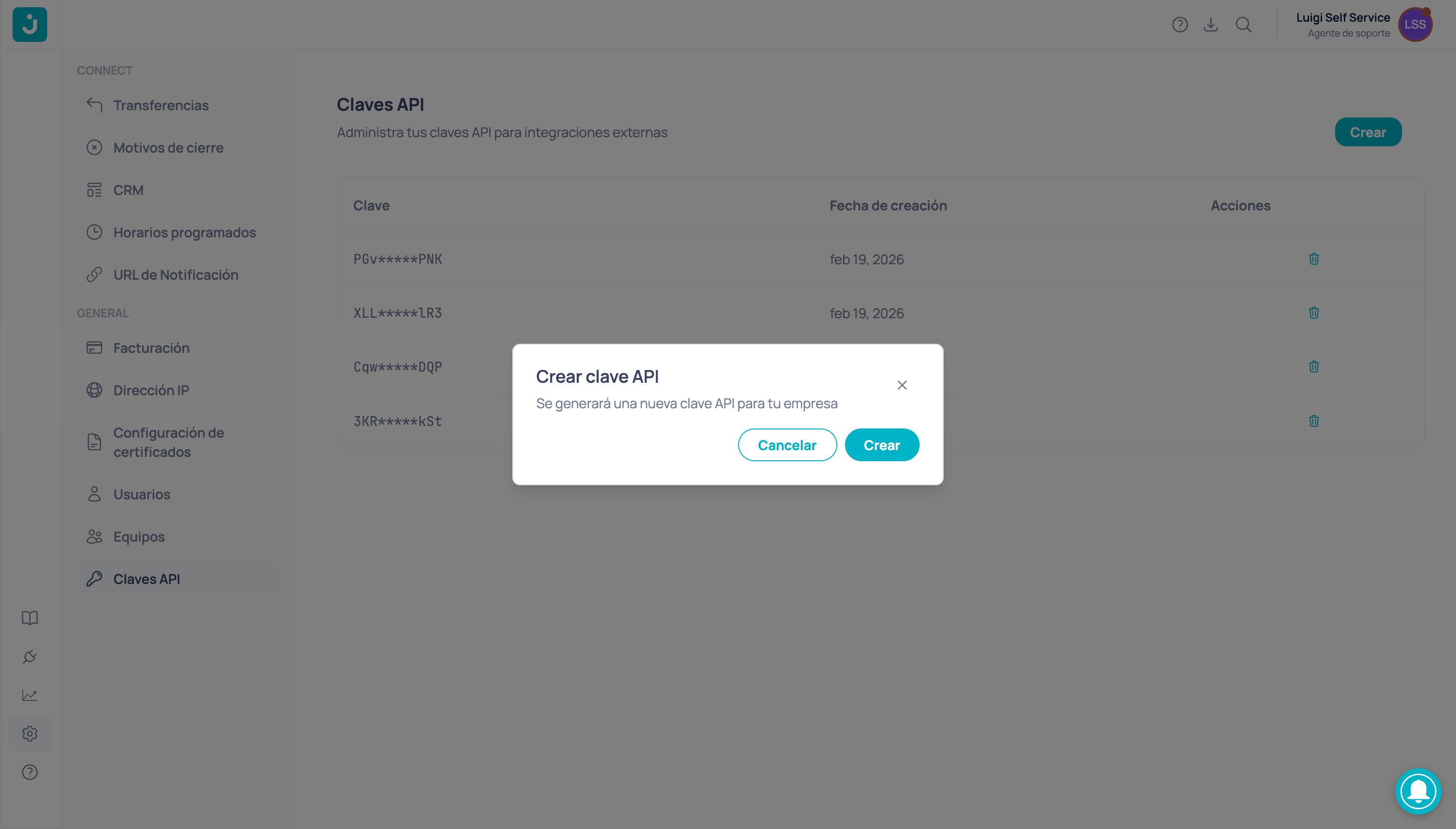
Confirmation dialog to create a new API key
3

Copy your key

The generated key will be displayed on screen. Use the copy button to save it to your clipboard.
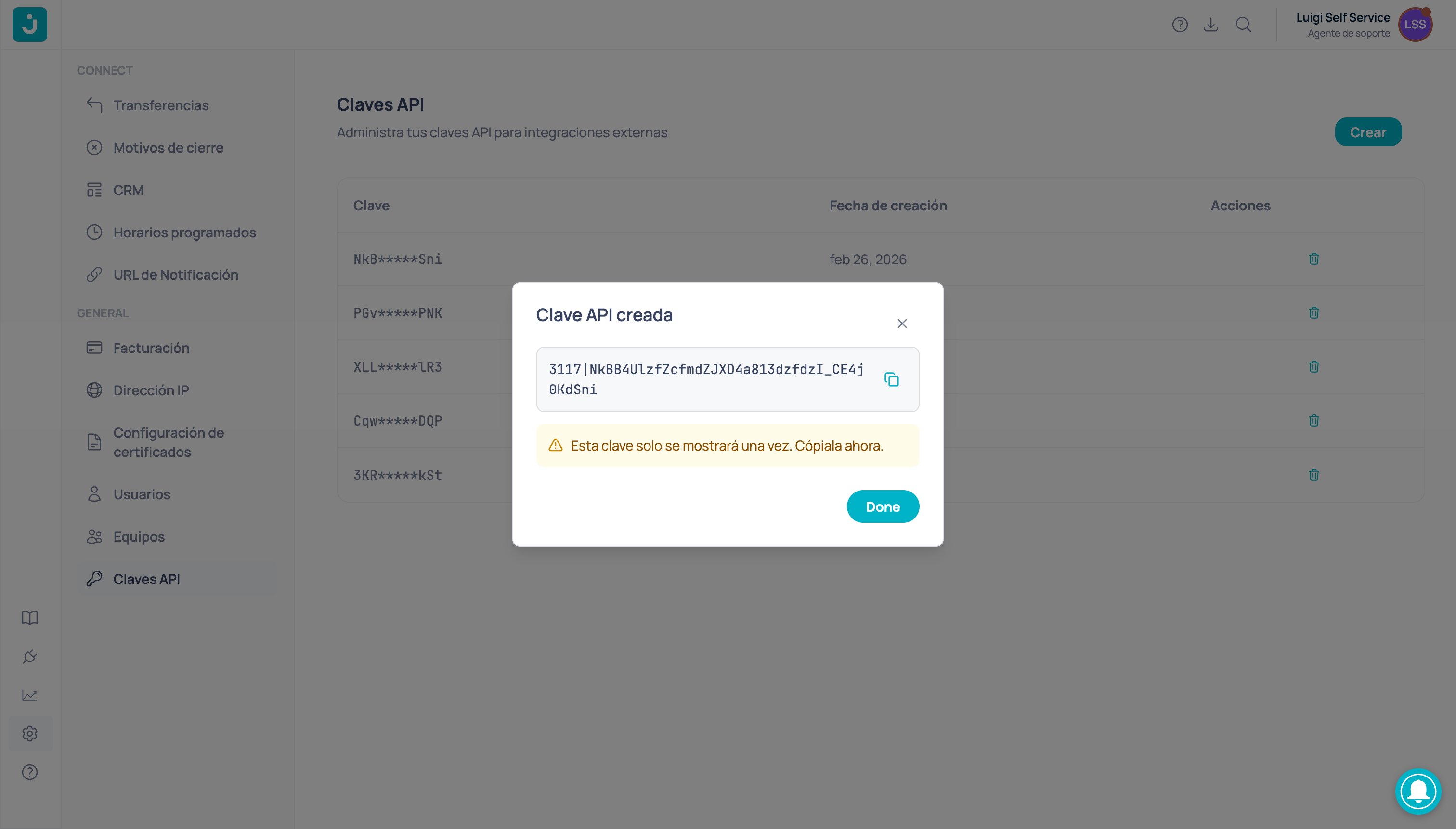
Dialog showing the newly created API key with a copy button and single-visibility warning
The key is only shown once. Copy it and store it in a safe place before closing the dialog. If you lose it, you will need to create a new one.

Delete an API key

To delete a key you no longer need, click the delete icon (trash can) in the Actions column of the corresponding key. A confirmation dialog will be shown before proceeding.
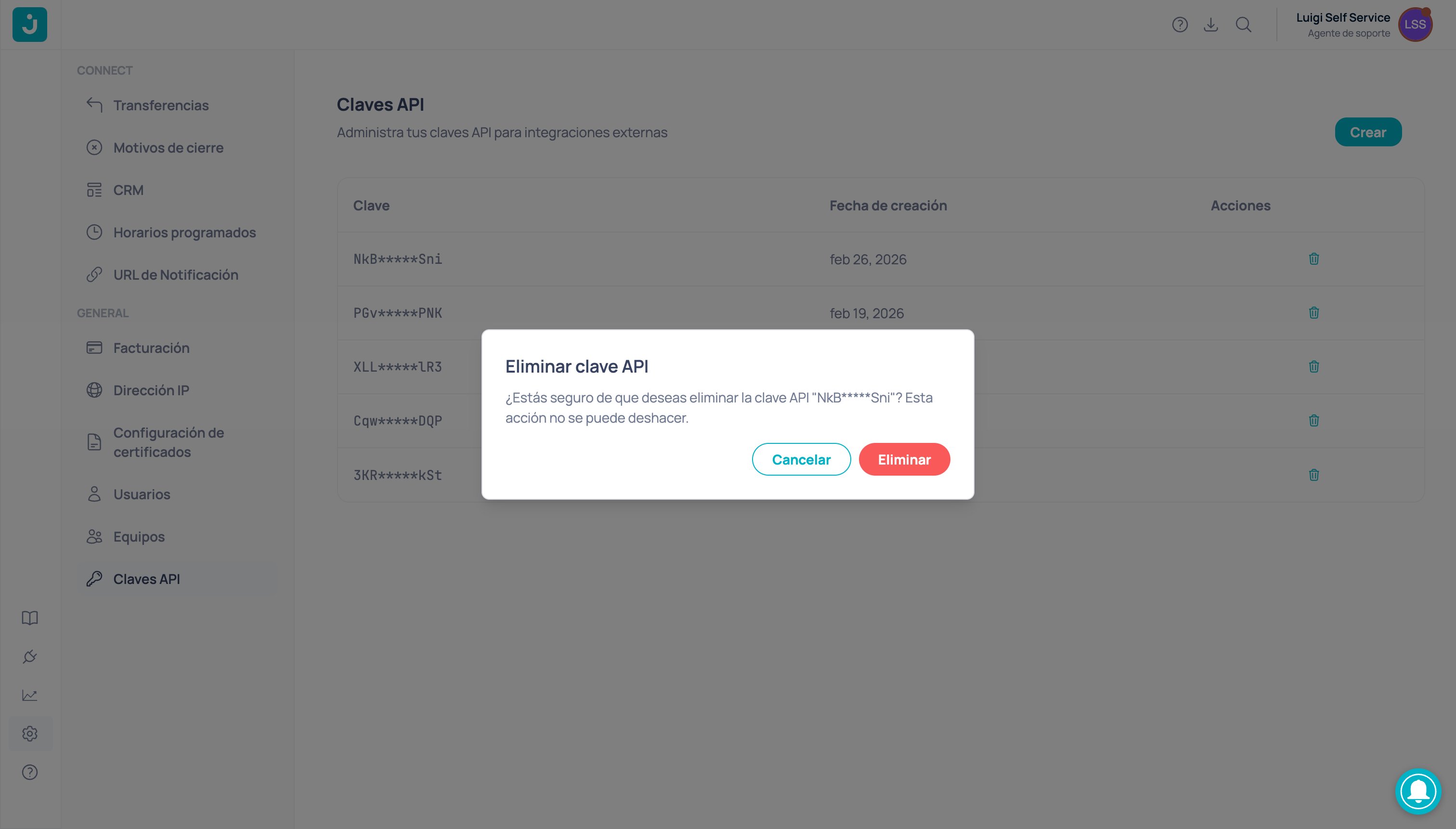
Confirmation dialog to delete an API key, warning that the action cannot be undone
Deleting an API key is an irreversible action. Any integration using that key will stop working immediately. Verify that no active service depends on the key before deleting it.

Use your API key

Include the API key in the x-api-key header of your HTTP requests:
curl --request GET \
  --url https://gateway.jelou.ai/jelouapi/v1/company/{companyId} \
  --header 'x-api-key: YOUR_API_KEY'
Check the API reference to see all available endpoints.

Best practices

  • Do not share keys in public repositories or messages. Use environment variables to store them.
  • Rotate your keys periodically. Create a new key, update your integrations, and delete the old one.
  • Use one key per integration. If a key is compromised, you can revoke it without affecting other services.