Saltar al contenido principal

Documentation Index

Fetch the complete documentation index at: https://docs.jelou.ai/llms.txt

Use this file to discover all available pages before exploring further.

Calendly is a self-service scheduling platform designed for sales and service teams. Unlike calendar integrations such as Google Calendar or Outlook (which operate on personal calendars), Calendly is built so that clients or prospects can book directly based on availability rules, event types, and shareable links. In Brain Studio, the integration lets your flows check real availability, generate personalized booking links, and manage already scheduled meetings, all from the conversation.

What Calendly enables

When you connect Calendly, you can:
  • Check real availability for specific event types and time windows
  • Discover and select the meeting types configured in the account
  • Generate booking links that are reusable or single-use
  • List, review, and cancel already scheduled meetings

Installation

Prerequisites

  1. An active Calendly account.
  2. An API Key generated from Integrations & apps -> API & Webhooks.

How to get credentials

To connect Calendly in Brain Studio, you need an API Key generated from your own Calendly account.
1

Open Integrations & apps in Calendly

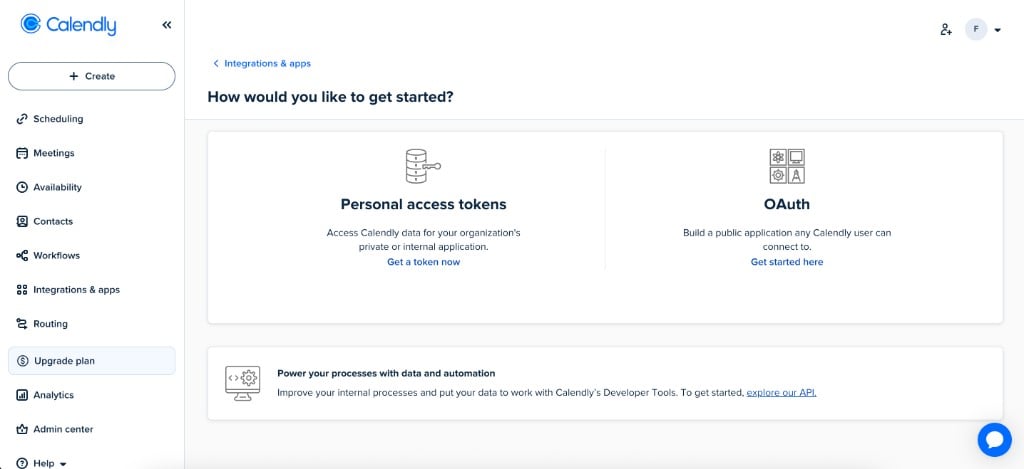
Sign in to Calendly and go to Integrations & apps. There you will see the How would you like to get started? screen with two options: Personal access tokens and OAuth.
Calendly Integrations & apps screen with Personal access tokens and OAuth options
2

Click Get a token now

Inside the Personal access tokens section, select Get a token now to start creating the personal token you will use in Brain Studio.
3

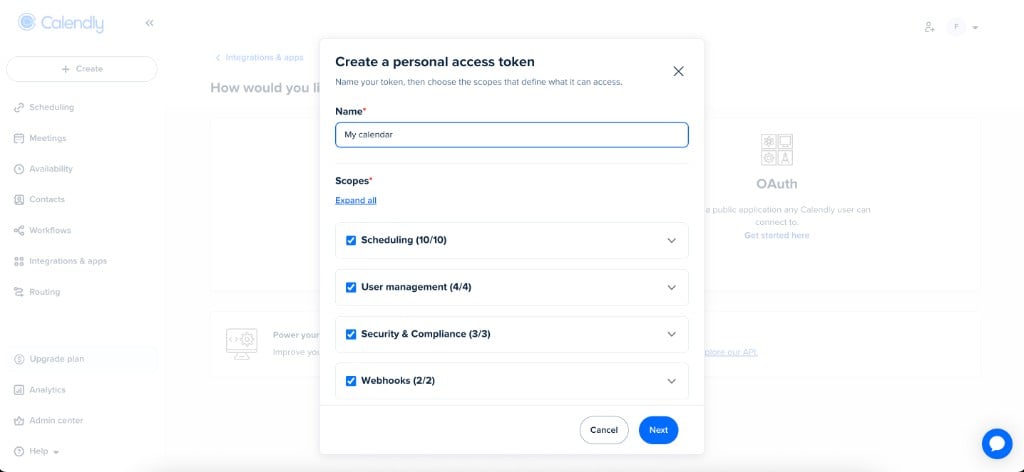
Assign a name and define token scopes

Calendly will open the Create a personal access token modal. In the Name field, assign a recognizable name for this integration, such as Brain Studio or Jelou.Then, in Scopes, select the required permissions so the integration can read user data, event types, availability, and scheduled events, and also create links and cancel events.
Calendly Create a personal access token modal with Name field and scope selection
For current Brain Studio tools, the token must cover reading user info, event types, availability, and scheduled events, plus write permissions for links and cancellations.
4

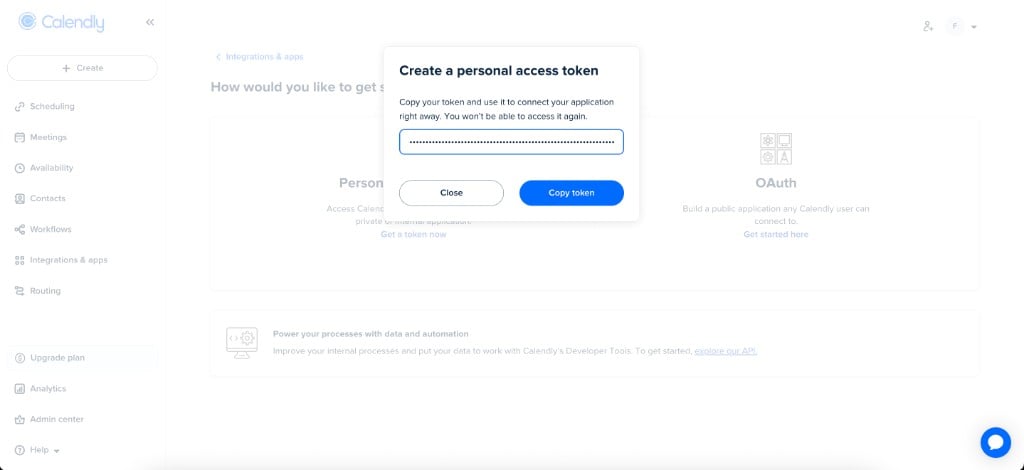
Copy the generated token

After creation, Calendly shows the token only once in the modal with a Copy token button. Copy it and store it in a secure place.
Calendly modal showing the generated personal access token and the Copy token button
Treat this token like a password. Do not share it or expose it in public code, open documents, or shared channels.

How to connect it

The most direct way is to use Jelou Agent: describe what you need and the agent connects Calendly automatically in your flow. If you prefer manual installation, open the Marketplace and follow these steps with the API Key you got in the previous step.
1

Open the Marketplace

In Brain Studio, open Marketplace from the side menu.
2

Search for Calendly

Find the integration and click Connect.
3

Enter the API Key

Complete the form with your Calendly API Key.
4

Confirm installation

The integration will appear as connected.
You can use it in Canvas or add it as a tool in AI Agent.

Available tools

At a high level, actions are grouped as follows:
  • Time and userGet Current Time and Get Current User
  • Event typesList Event Types and Get Event Type
  • Availability and scheduled eventsCheck Availability, List Scheduled Events, and Get Scheduled Event
  • LinksCreate Scheduling Link and Create Single-Use Link
  • CancelCancel Event
The integration exposes 10 tools in Brain Studio; below is each one with the purpose described by the product. The exact JSON body field names must match the node editor before deployment.
Get the current date and time in UTC and in the user’s time zone.
IMPORTANT: call this tool first when the user mentions relative dates (for example “tomorrow,” “next week,” “this Friday,” “December 24,” etc.). This gives you the correct date to calculate ISO 8601 timestamps for the rest of Calendly tools.
Inputs:
  • According to the Brain Studio form (it usually requires no parameters or accepts an empty body).
Example:
{}
Get information about the Calendly user authenticated with the API Key, including their URI (required for other operations), name, email, time zone, and organization.Inputs:
  • No required parameters in the usual setup; validate the body in the editor.
Example:
{}
List all event types (meeting types) configured for the user. Returns the name, duration, scheduling URL, and whether they are active. Use it to discover which meeting types are available for booking.Inputs:
  • Filters or pagination exposed by the node (for example active status, result limit), based on the editor.
Example:
{
  "active": true,
  "count": 20
}
Adjust keys and values to what the tool accepts in Brain Studio; the goal is to list the catalog before Check Availability or link creation.
Get detailed information about a specific event type, including duration, description, custom questions, and scheduling URL.Inputs:
  • Event type identifier in the format required by the node (for example event type URI).
Example:
{
  "event_type_uri": "https://api.calendly.com/event_types/ABC123"
}
Get available time slots for a specific event type within a date range. Returns scheduling URLs for each available slot. Use it to know when someone can meet.Inputs:
  • Event type and time window in the format shown by the editor (usually aligned to ISO 8601 ranges).
Example:
{
  "event_type_uri": "https://api.calendly.com/event_types/ABC123",
  "start_time": "2025-01-15T00:00:00Z",
  "end_time": "2025-01-16T00:00:00Z",
  "timezone": "America/Guayaquil"
}
Confirm field names (start_time / end_time or others) in the node; they must stay consistent with Get Current Time when users speak in relative dates.
List scheduled events (booked meetings) with optional filters for date range, status (active / canceled), and invitee email. Returns meeting details, including time, location, and number of attendees.Inputs:
  • Optional filter parameters according to the form (range, status, invitee email, pagination).
Example:
{
  "min_start_time": "2025-01-01T00:00:00Z",
  "max_start_time": "2025-01-31T23:59:59Z",
  "status": "active"
}
Validate in the editor the exact filter names and the allowed values for status.
Get detailed information about a specific scheduled event, including all invitees, their responses to custom questions, the meeting location and join link, and cancellation details when applicable.Inputs:
  • Scheduled event identifier (for example event URI), according to the node.
Example:
{
  "event_uri": "https://api.calendly.com/scheduled_events/XYZ789"
}
Cancel a scheduled event. You can provide an optional reason for cancellation. This will notify all invitees that the event has been canceled.The tool returns only the translated text, without additional explanations.Inputs:
  • Event identifier to cancel and optional reason, according to the form.
Example:
{
  "event_uri": "https://api.calendly.com/scheduled_events/XYZ789",
  "reason": "Rescheduling requested by the client"
}

How to use it in Brain

Once connected, you can use Calendly in two surfaces:

In AI Agent

Ideal when users want to schedule or manage meetings in natural language, including dates in colloquial phrasing.
1

Open the AI Agent node

In Canvas, select or add the AI Agent node.
2

Open Tools

In the right panel, go to the Tools tab.
3

Add Calendly

Use Add tool, search for Calendly, and enable it.
4

Configure tools

Choose full integration or enable only the actions you need.
Calendly appears in the agent tools list, and you can open its settings with the gear icon.
The agent should invoke Get Current Time before Check Availability or other tools that depend on timestamps when users speak in relative dates. Then it can use List Event Types, Check Availability, links, or Cancel Event depending on the conversation.

In Canvas

Ideal when you need full flow control (for example: Get Current Time -> List Event Types -> Check Availability -> Create Single-Use Link).
1

Drag Calendly into Canvas

In the side panel, open Marketplace and drag Calendly into the flow.
2

Select the tool

With the node selected, in Tools choose the action (for example Check Availability or Create Single-Use Link).
3

Configure body and memory

Fill in the request body JSON and, if needed, Save response to a memory variable.
4

Connect the flow

Link the Task completed and There was an error outputs to the next nodes.
The node is ready to run in the sequence defined by your flow.
Configuration example: The node editor shows the expected JSON body for the selected tool. For Create Single-Use Link, it usually includes the event type and invitee data to prefill.
{
  "event_type_uri": "{{$memory.event_type_uri}}",
  "invitee_email": "{{$memory.email_cliente}}",
  "invitee_name": "{{$memory.nombre_cliente}}"
}

Use cases

A prospect shows interest in chat. Instead of sending a generic Calendly link, the flow identifies the right meeting type, checks real availability, and generates a personalized link.Concrete example: a SaaS company gets inquiries via WhatsApp. The prospect says “I’m interested in a demo.” The agent identifies the “30 min Demo” event type, checks availability for the next 3 days, and generates a single-use link with the prospect’s name and email prefilled. The prospect books in two clicks, without leaving WhatsApp.Ideal for: B2B sales teams, SaaS, agencies, and professional services that capture leads through conversational channels.
Instead of always sharing the same link, the flow shows real time options based on what the user asks for, making the experience more conversational and less cold.Concrete example: a professional services firm. The client says “Do you have anything Thursday afternoon?” The agent gets current time, checks availability for the right event type in that range, and replies with available slots. The client chooses one and receives the specific booking link for that slot.Ideal for: sales teams, consultants, and services where scheduling experience quality impacts conversion.
The user wants to cancel an appointment but does not have the Calendly email on hand. Instead of searching, they cancel directly from WhatsApp.Concrete example: a prospect writes “I need to cancel my Wednesday meeting.” The flow lists scheduled events, finds the appointment by date, confirms with the user, and executes cancellation with the stated reason. The prospect did not need to open email or log into Calendly.Ideal for: teams with high external meeting volume and high rescheduling rates.

Integrations that pair well with Calendly

After a prospect books in Calendly, the flow can log activity in HubSpot: create or update the contact, add a note with the meeting type, and move the deal to the corresponding stage.Combined flow: appointment confirmed in Calendly -> contact updated in HubSpot -> deal moved to “Demo scheduled.”HubSpot documentation
After sharing a Calendly link or detecting a confirmed meeting, the flow can send an email with extra context: pre-demo materials, prep instructions, or access details.Combined flow: Calendly link generated -> Gmail email sent with preparation material for the meeting.Gmail documentation
Every meeting scheduled or canceled from a conversational flow can trigger an alert in the team’s channel, so the assigned rep stays informed without checking Calendly.Combined flow: appointment scheduled in Calendly -> message posted to #sales in Slack with date, prospect, and meeting type.Slack documentation

Integrations

Catalog of integrations available in the Marketplace.

How to use integrations in Brain

General flow to install and use integrations in Brain Studio.