Saltar al contenido principal

Documentation Index

Fetch the complete documentation index at: https://docs.jelou.ai/llms.txt

Use this file to discover all available pages before exploring further.

Google Calendar is Google Workspace’s calendar and meetings service. Unlike scheduling platforms such as Calendly or AgendaPro (which operate on bookings for external clients), Google Calendar manages each user’s personal and shared schedule. In Brain Studio, this integration lets your flows and agents check availability, create meetings, reschedule appointments, and coordinate attendees directly from the conversation.

What Google Calendar enables

When you connect Google Calendar, you can:
  • Check real availability (free/busy) for people or rooms before committing to a date
  • Create, update, and delete events with attendees, conferencing, and optional fields from the flow
  • Coordinate meetings from the conversation — schedule demos, follow-ups, or operational appointments without anyone opening Calendar
  • Read existing calendars and events to give the agent context before suggesting a time

Installation

Prerequisites

  1. A Google account with Google Calendar enabled.

How to connect it

The most direct way is to use Jelou Agent: describe what you need and the agent connects Google Calendar automatically in your flow. If you prefer manual installation, follow these steps in the Marketplace. The connection uses Google OAuth; you do not need to copy credentials.
1

Open the Marketplace

In Brain Studio, open Marketplace from the side menu.
2

Search for Google Calendar

Find the integration and click Connect.
3

Authorize access

Sign in to Google and accept permissions.
4

Confirm installation

The integration will appear as connected.
You can use it in Canvas or add it as a tool in AI Agent.

Available tools

At a high level, actions are grouped as follows:
  • Query — list calendars and events, free/busy, calendar or event details, current user.
  • Create or modify — create event, quick add event, update event, add attendees.
  • Delete — delete an event.
The integration exposes 11 tools in Brain Studio; below is each one with purpose, inputs, and example.
Add new guests to an event that already exists. This is usually done through an event update while keeping other fields.Inputs:
  • calendarId (string) — Calendar ID (use "primary" for the primary calendar).
  • eventId (string) — Event ID.
  • attendees (array of objects) — List of attendees to add or merge; each object can include email (string), displayName (optional), optional (optional, boolean), etc.
Example:
{
  "calendarId": "primary",
  "eventId": "abc123evento",
  "attendees": [
    { "email": "[email protected]", "displayName": "Invitado" }
  ]
}
Google documentation: update event
Create a new event with title, schedule, and optional fields (attendees, conference, color, etc.).Inputs:
  • calendarId (string) — Calendar ID ("primary" for the primary calendar).
  • summary (string) — Event title.
  • description (string) — Description.
  • start (string) — Start in ISO 8601 (date YYYY-MM-DD or full date/time).
  • end (string) — End in ISO 8601 (must be later than start; for all-day events, end date is exclusive).
  • attendees (optional, array of objects) — Attendees with email, displayName (optional), optional (optional), etc.
  • anyoneCanAddSelf (optional, boolean)
  • colorId (optional, string) — Event color (1-11).
  • conferenceData (optional, object or null) — Conference data (e.g., Google Meet) with createRequest / requestId / conferenceSolutionKey.
Example:
{
  "calendarId": "primary",
  "summary": "Brain Studio Onboarding",
  "description": "Implementation session with ACME.",
  "start": "2025-01-16T14:00:00-03:00",
  "end": "2025-01-16T15:00:00-03:00",
  "attendees": [
    { "email": "[email protected]", "displayName": "ACME Client" },
    { "email": "[email protected]", "optional": true }
  ],
  "conferenceData": {
    "createRequest": {
      "requestId": "brain-studio-onboarding",
      "conferenceSolutionKey": { "type": "hangoutsMeet" }
    }
  }
}
Google documentation: insert event
Delete an event from a calendar. This action is irreversible in Calendar (the event no longer exists).
Running this tool permanently deletes the specified event. Verify calendarId and eventId before confirming in the flow or agent.
Inputs:
  • calendarId (string) — Calendar ID.
  • eventId (string) — Event ID.
Example:
{
  "calendarId": "primary",
  "eventId": "6a1b2c3d4e5f"
}
Google documentation: delete event
Return detailed metadata for a specific calendar (for example summary, time zone, location).Inputs:
  • calendarId (string) — Calendar ID (e.g., calendar email or "primary" when supported by the tool).
Example:
{
  "calendarId": "primary"
}
Google documentation: get calendar
Get authenticated account info and useful scheduling context: primary calendar, accessible calendars, user settings (time zone, locale, etc.) depending on what the tool exposes.Inputs:
  • Usually no required parameters. If the tool provides optional filters, use them according to the Brain Studio form.
Example:
{}
Google documentation: calendar (API reference)
Get the full event resource by event ID.Inputs:
  • calendarId (string) — Calendar ID.
  • eventId (string) — Event ID.
Example:
{
  "calendarId": "primary",
  "eventId": "6a1b2c3d4e5f"
}
Google documentation: get event
List calendars in the user’s collection (access, color, selection, etc.).Inputs:
  • pageToken (optional, string) — Pagination token.
  • includeHidden (optional, boolean) — Include hidden calendars (e.g., birthdays) if the tool supports it.
Example:
{
  "pageToken": "Cg4IARAA",
  "includeHidden": false
}
Google documentation: list calendarList
List events in a time range; supports pagination and, depending on the tool, text search.Inputs:
  • calendarId (string) — Calendar ID ("primary" for the primary calendar).
  • startsAt or timeMin (string) — Range start (ISO 8601), according to the field name in the form.
  • endsAt or timeMax (string) — Range end (ISO 8601).
  • pageToken (optional, string) — Pagination.
  • searchQuery (optional, string) — Text in title, description, etc.
Example:
{
  "calendarId": "primary",
  "startsAt": "2025-01-16T14:00:00-03:00",
  "endsAt": "2025-01-16T18:00:00-03:00",
  "searchQuery": "onboarding"
}
Google documentation: list events
Query free/busy intervals for one or more calendars in a time range.Inputs:
  • timeMin (string) — Interval start (ISO 8601).
  • timeMax (string) — Interval end (ISO 8601).
  • items (array of objects) — Calendars to query; each item usually includes id (string, calendar ID).
Example:
{
  "timeMin": "2025-01-16T09:00:00-03:00",
  "timeMax": "2025-01-16T18:00:00-03:00",
  "items": [{ "id": "primary" }, { "id": "[email protected]" }]
}
Google documentation: query freebusy
Create an event by interpreting free text (natural language).Inputs:
  • calendarId (string) — Destination calendar ("primary" usually).
  • text (string) — Descriptive text (e.g., “Meeting with Ana tomorrow at 10:00”).
Example:
{
  "calendarId": "primary",
  "text": "Team lunch Friday 13:00"
}
Google documentation: quickAdd
Update fields of an existing event. Send only the fields you want to modify.Inputs:
  • calendarId (string) — Calendar ID.
  • eventId (string) — Event ID.
  • summary (optional, string) — Title.
  • description (optional, string) — Description.
  • start / end (optional, string) — ISO 8601.
  • attendees (optional, array of objects) — Same structure as “Create event.”
  • anyoneCanAddSelf (optional, boolean)
  • colorId (optional, string)
  • conferenceData (optional, object or null)
Example:
{
  "calendarId": "primary",
  "eventId": "6a1b2c3d4e5f",
  "summary": "Brain Studio Onboarding (updated)",
  "start": "2025-01-16T14:30:00-03:00",
  "end": "2025-01-16T15:30:00-03:00"
}
Google documentation: update event

How to use it in Brain

Once connected, you can use Google Calendar in two surfaces:

In AI Agent

Ideal when users want to schedule, move, or check meetings in natural language.
1

Open the AI Agent node

In Canvas, select or add the AI Agent node.
2

Open Tools

In the right panel, go to the Tools tab.
3

Add Google Calendar

Use Add tool, search for Google Calendar, and enable it.
4

Configure tools

Choose full integration or enable only the actions you need.
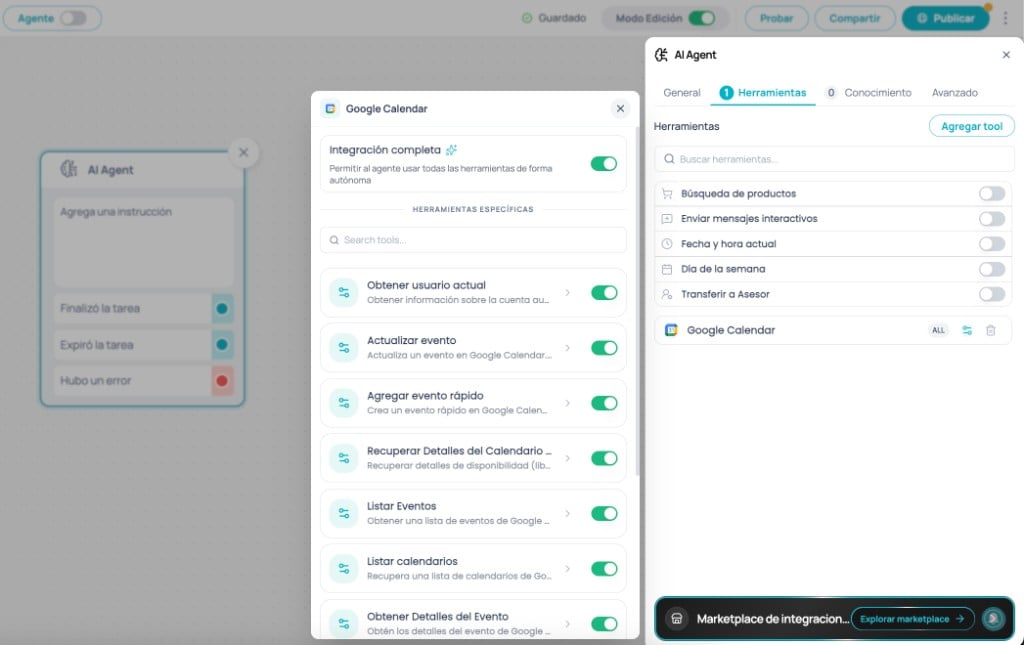
Google Calendar appears in the agent tools list, and you can open its settings with the gear icon.
AI Agent side panel in Brain Studio: Tools tab with Google Calendar added and configuration available
The agent will automatically decide when to check availability or create events based on the conversation.

In Canvas

Ideal when you need full flow control (for example: validate -> propose -> confirm -> create event).
1

Drag Google Calendar into Canvas

In the side panel, open Marketplace and drag Google Calendar into the flow.
2

Select the tool

With the node selected, in Tools choose the action (for example Create event).
3

Configure body and memory

Fill in the request body JSON and, if needed, Save response to a memory variable.
4

Connect the flow

Link the Task completed and There was an error outputs to the next nodes.
The node is ready to run in the sequence defined by your flow.
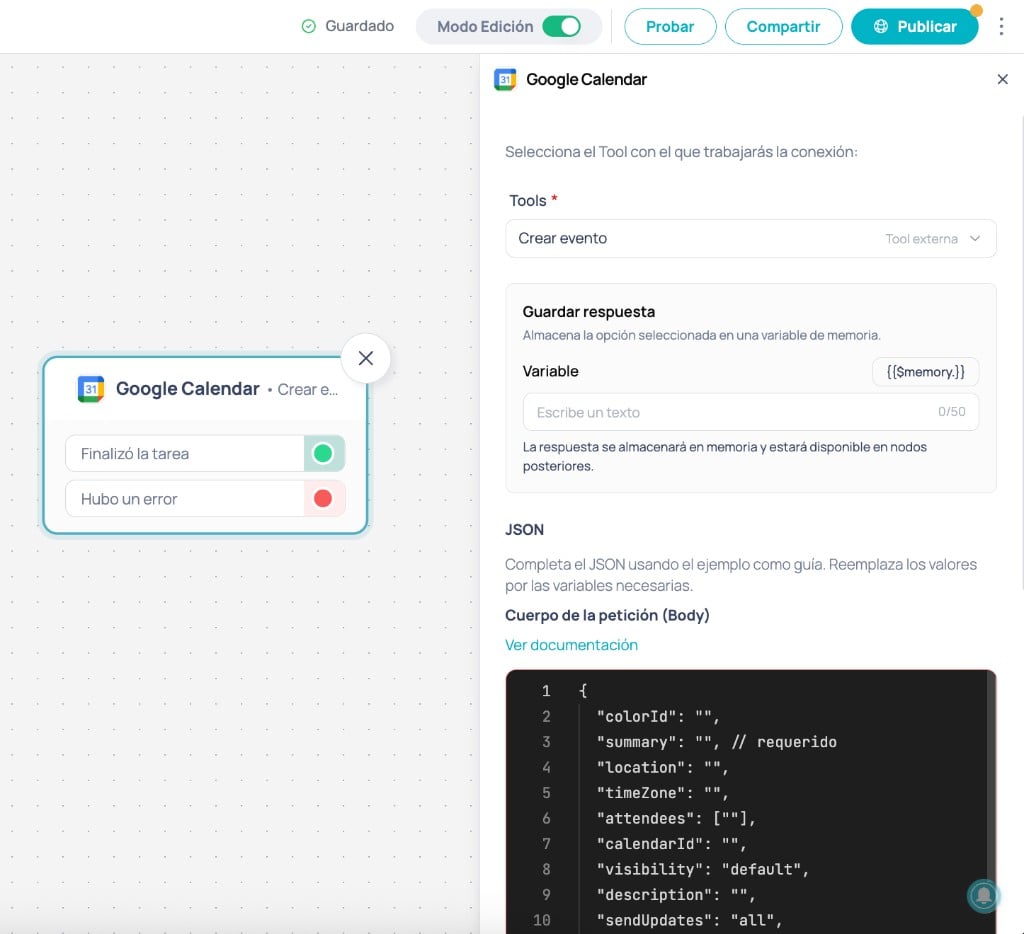
Configuration example: The node editor shows a JSON body aligned with the Create event tool. Required fields are summary, eventStartDate, and eventEndDate. The rest is optional based on your use case.
{
  "colorId": "1",
  "summary": "Follow-up {{$memory.nombre_cliente}}",
  "location": "Head office",
  "timeZone": "America/Mexico_City",
  "attendees": ["[email protected]"],
  "calendarId": "primary",
  "visibility": "default",
  "description": "Meeting scheduled from the flow",
  "sendUpdates": "all",
  "eventEndDate": "{{$memory.fin_iso}}",
  "createMeetRoom": true,
  "eventStartDate": "{{$memory.inicio_iso}}",
  "repeatFrequency": "DAILY"
}
Brain Studio: Google Calendar Create event node in Canvas and configuration panel with selected tool, save response, and JSON request body

Use cases

Fully automate demo coordination from channels like WhatsApp or webchat.Typical flow:
  • User shows interest in the product
  • Agent proposes scheduling a demo
  • It checks availability in Google Calendar
  • It offers available time slots
  • It creates the event when the user confirms
Concrete example: a lead writes on WhatsApp asking to see the product. The agent checks the sales team’s schedule with Get free/busy calendar details, proposes three time windows, and after confirmation uses Create event including Google Meet. The lead gets the invitation without any rep intervention.Impact:
  • Reduces friction in lead conversion
  • Prevents missed opportunities due to delayed response
  • Standardizes the sales process
Ideal for: sales teams, SaaS, sales onboarding
Lets you automatically schedule technical visits, installations, or field services.Typical flow:
  • User requests a visit (e.g., support, installation, maintenance)
  • Agent validates schedule availability
  • It proposes time windows
  • It schedules the appointment in Google Calendar
  • (Optional) confirms logistics details
Concrete example: a telecom customer writes on WhatsApp to schedule fiber installation. The agent checks free time blocks for the technician assigned to that area, proposes options, and when confirmed creates the event with the customer’s address and logistics notes.Impact:
  • Reduces manual operational workload
  • Improves coordination times
  • Lowers schedule errors
Ideal for: technical support, logistics, field services
Ensure every relevant interaction ends with a scheduled follow-up.Typical flow:
  • A conversation closes (sales, support, onboarding)
  • Agent proposes scheduling follow-up
  • It creates the event in Google Calendar
  • It confirms to the user or internal team
Impact:
  • Improves retention and continuity
  • Prevents context loss
  • Standardizes post-sales
Ideal for: customer success, support, onboarding
Integrates calendar events into the full sales workflow.Typical flow:
  • Agent detects a qualified lead
  • It schedules a meeting in Google Calendar
  • (Optional) creates or updates contact in CRM
  • It triggers reminders or follow-ups
Impact:
  • Aligns scheduling with sales pipeline
  • Reduces manual CRM work
  • Improves process traceability
Ideal for: sales teams with CRM (HubSpot, Bitrix, Salesforce)
Lets users interact with their calendar without friction.Typical flow:
  • User writes: “move my meeting tomorrow to 4”
  • Agent interprets intent
  • It checks existing events
  • It updates or reschedules the event
  • It confirms the change
Impact:
  • Improves end-user experience
  • Reduces friction in schedule management
  • Enables real conversational automation
Ideal for: personal assistants, productivity, internal operations

Integrations that pair well with Google Calendar

Useful for logging appointments, availability, or schedule status in a tracking sheet.Combined flow: create event in Google Calendar -> log date, attendees, and Meet link in a scheduling control sheet.Google Sheets documentation
Useful for sending confirmations, reminders, or follow-up emails after scheduling or moving an appointment.Combined flow: schedule meeting in Google Calendar -> send confirmation email with details and link to the client.Gmail documentation
Lets you connect meetings with contacts and opportunities in the sales workflow.Combined flow: qualify lead in HubSpot -> schedule demo in Google Calendar -> log the meeting as an activity in the deal.HubSpot documentation
Useful when calendar scheduling is part of a sales or post-sales process connected to CRM.Combined flow: qualified lead in Bitrix24 -> create follow-up event in Google Calendar -> notify assigned rep.Bitrix24 documentation

Integrations

Catalog of integrations available in the Marketplace.

How to use integrations in Brain

General flow to install and use integrations in Brain Studio.