
Siigo is an accounting and electronic invoicing system widely used by Colombian companies. In Brain Studio, this integration lets your flows and agents issue invoices, manage customers and products, record payments, and query accounting information directly from conversations.Documentation Index
Fetch the complete documentation index at: https://docs.jelou.ai/llms.txt
Use this file to discover all available pages before exploring further.
What Siigo enables
When you connect Siigo, you can:- Invoice from the conversation - issue DIAN-valid electronic invoices without the team opening Siigo
- Close the collection cycle in chat - check pending invoices, record payments, and confirm with the customer in the same thread
- Quote and convert to invoice - generate proformas and, once the customer confirms, issue the invoice without re-entering data
- Keep master data up to date - search and manage Siigo customers, products, and catalogs from the flow
Installation
Prerequisites
- An active account in Siigo Nube Colombia.
- A plan compatible with Siigo API. Currently, Siigo provides API access in Administrative Software plans: Independent Professional, Entrepreneur, and Premium.
How to get credentials
To connect Siigo in Brain Studio, you need three values generated inside Siigo Nube:- Partner-ID
- API User
- Access Key
Open Alliances in Siigo Nube
In the Siigo Nube side menu, go to Alliances (Alianzas). In the upper-right area, you will see the My API credential (Mi credencial API) button.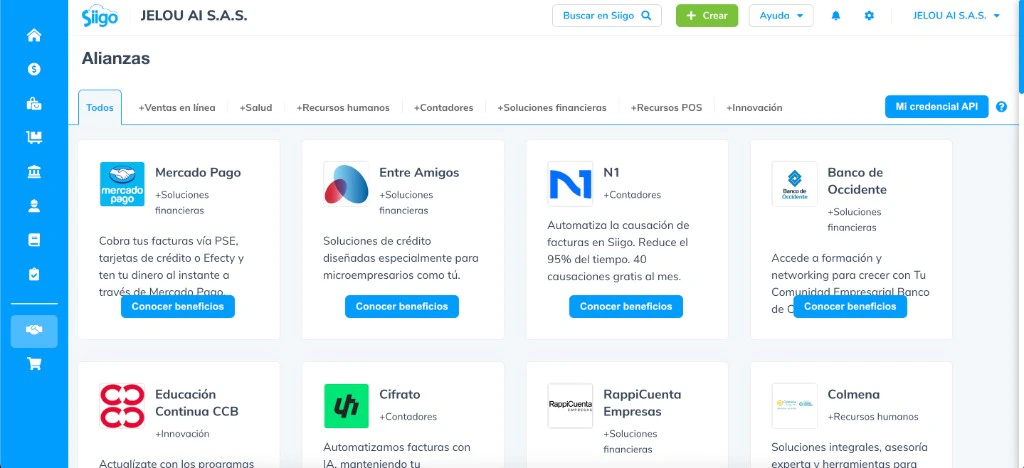
Open the Siigo API Credentials screen
Click My API credential (Mi credencial API). This opens the Siigo API Credentials (Credenciales de Siigo API) screen, where you will see three sections: Contact data (Datos de contacto), Linked applications (Aplicaciones vinculadas), and Access data (Datos de acceso).
Complete contact details
In the Contact data (Datos de contacto) section, enter the name, email, and phone number of the person who will receive information about Siigo API updates, features, and notifications.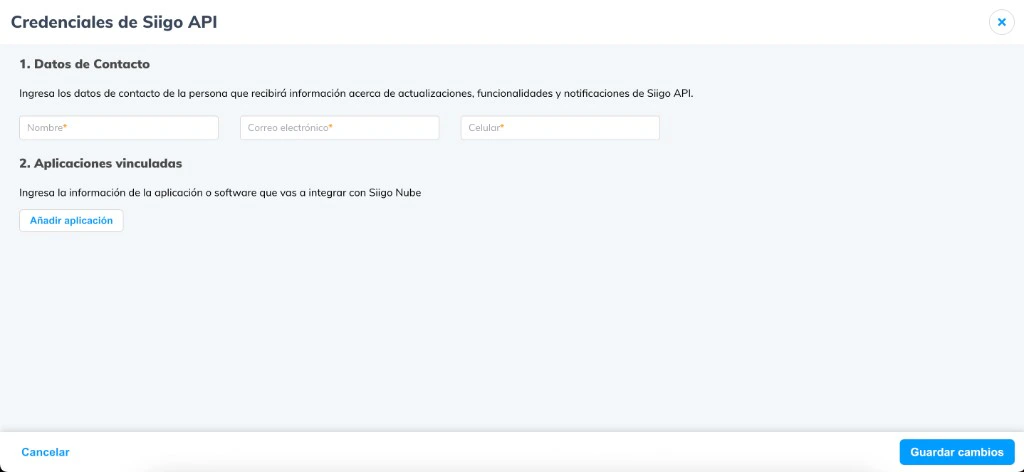
Create a linked application
In Linked applications (Aplicaciones vinculadas), click Add application (Añadir aplicación) and complete the app setup you will use with Brain Studio.Based on the validated flow for this integration, you can use: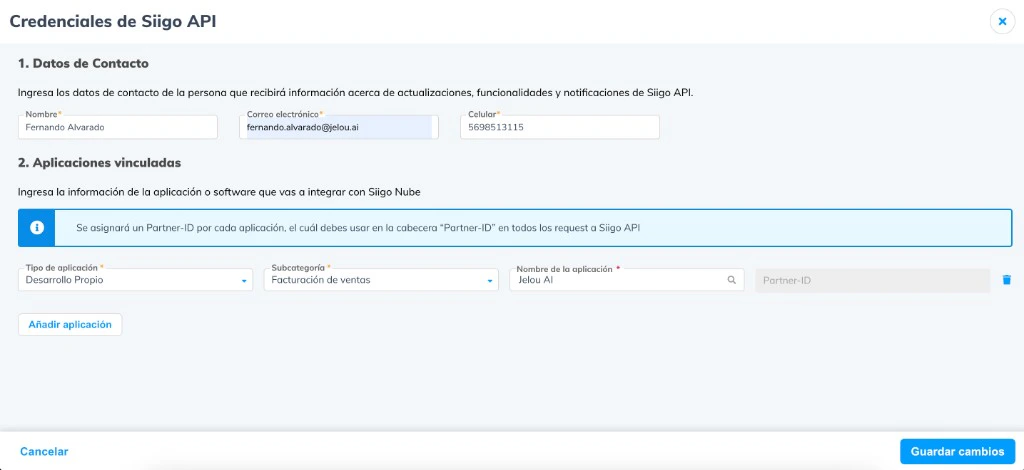
- Application type:
Desarrollo Propio - Subcategory:
Sales invoicing (Facturación de ventas) - Application name: a recognizable name, for example
Jelou AIorBrain Studio
Siigo assigns one Partner-ID for each created app. This is the value you must later use as a credential in Brain Studio.
Copy access credentials
After pressing Save changes (Guardar Cambios), in the Access data (Datos de acceso) section you will see the API User (Usuario API) and the button to copy the Access Key. Also copy the Partner-ID generated for the linked application.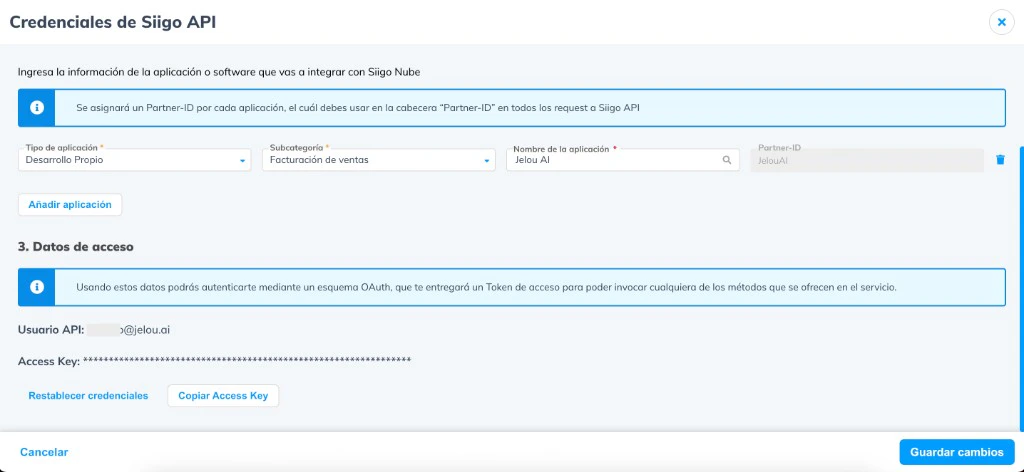
To complete the connection in Brain Studio you need exactly these three values: Partner-ID, API User, and Access Key.
How to connect it
The most direct way is to use Jelou Agent: describe what you need and the agent connects Siigo automatically inside the flow. If you prefer manual setup, open Marketplace and follow these steps with the credentials you obtained in the previous step.Available tools
At a high level, actions are grouped as follows:- Create or record - create invoice, create proforma, record payment.
- Query - customer history, inventory status, invoice status.
- List catalogs - customers, document types, payment methods, products, users.
Create Invoice
Create Invoice
Creates an electronic invoice with product details and customer data. Returns the invoice number, status, and PDF URL.Inputs:
- document_id (integer) - Document type ID for invoice. Use List document types to retrieve it.
- seller_id (integer) - Seller ID. Use List Users to retrieve it.
- customer (object) - Customer data: person_type (string,
"Person"or"Company"), id_type (string), identification (string), name (array of strings), address (object, optional), phones (array, optional), contacts (array, optional). - items (array of objects) - Invoice lines; each item includes code (string), description (string), quantity (number), price (number), taxes (array, optional), discounts (array, optional).
- observations (optional, string) - Additional notes on the invoice.
- payment_type (optional, string) - Payment method.
Create Proforma
Create Proforma
Creates a quote/proforma (non-fiscal document). Returns the quote ID, number, total, line items with taxes/discounts, and public URL to share with customers. Quotes can later be converted into invoices.Inputs:
- document_id (integer) - Document type ID for quote. Use List document types to retrieve it.
- seller_id (integer) - Seller ID. Use List Users to retrieve it.
- customer (object) - Same structure as Create Invoice: person_type, id_type, identification, name, contacts (optional).
- items (array of objects) - Quote lines; each item includes code, description, quantity, price, taxes (optional), discounts (optional).
- observations (optional, string) - Quote notes.
- validity_date (optional, string) - Quote expiration date (ISO 8601,
YYYY-MM-DD).
Get customer history
Get customer history
Returns all invoices associated with a specific customer. It provides complete history including invoice ID, number, date, items, totals, balance (pending amount), payments, stamping status, and cancellation status. Useful for queries such as “Which invoices does customer X have?” or “Show pending invoices for customer Y”.Inputs:
- customer_id (string) - Customer ID in Siigo.
- start_date (optional, string) - Start date for the query range (
YYYY-MM-DD). - end_date (optional, string) - End date for the query range (
YYYY-MM-DD). - page (optional, integer) - Page number for pagination.
- page_size (optional, integer) - Number of records per page.
Get inventory status
Get inventory status
Retrieves inventory/stock status for a specific product. Returns product identification (id, code, name), total quantity available across all warehouses, and a detailed warehouse breakdown (warehouse name and quantity by location). Useful for answering “How many units of product X are available?” or “Which warehouse has stock for product Y?”.Inputs:
- code (string) - Product code in Siigo.
Get Invoice Status
Get Invoice Status
Retrieves full invoice details by ID. Returns: status, number, date, customer information, invoice lines with taxes and discounts, payments, withholdings, totals, balance, electronic stamping status (CUFE/CUDE), email status, and all metadata. Essential for tracking the invoice lifecycle and DIAN stamping status.Inputs:
- id (string) - Invoice ID in Siigo.
List Customers
List Customers
Lists customers registered in Siigo. Returns complete customer data: identification, name, trade name, type (Customer/Supplier/Other), person type (Person/Company), contact data (address, phones, emails), active status, VAT information, and metadata. Useful for “Find customer by document” or “List all customers”.Inputs:
- identification (optional, string) - Customer identification number (NIT, ID card, or other) for exact search.
- page (optional, integer) - Page number for pagination.
- page_size (optional, integer) - Number of records per page.
List document types
List document types
Lists available document types from the Siigo catalog. Returned IDs are required when creating invoices, quotes, credit notes, and more. Returns document type ID, name, and active status. Use this tool to discover which document_id values are available in your account before creating invoices or quotes.Inputs:
- Usually no required parameters. If the tool exposes optional filters, use them according to the Brain Studio form.
List Payment Methods
List Payment Methods
Lists available payment methods from the Siigo catalog. Returns methods with ID, name, type (Receivable/Supplier/ReceivableSupplier), active status, and due-date indicator. Useful to find payment method IDs when recording payments (e.g., “Cash”, “Card”, “Transfer”).Inputs:
- document_type (optional, string) - Filters payment methods by document type.
List Products
List Products
Lists products and services from the Siigo catalog with comprehensive details. Returns paginated results with: ID, code, name, type, prices by currency, taxes, inventory levels by warehouse, account classification, active status, barcode, and metadata. Supports filtering by code, type, date ranges, and more.Inputs:
- code (optional, string) - Product code for exact search.
- type (optional, string) - Product type (e.g.
"Product","Service"). - start_date (optional, string) - Created-from date (
YYYY-MM-DD). - end_date (optional, string) - Created-to date (
YYYY-MM-DD). - page (optional, integer) - Page number.
- page_size (optional, integer) - Records per page.
List Users
List Users
Lists Siigo users. These users can be assigned as sellers when creating invoices or quotes. Returns user ID, name, email, username, and active status. Use pagination for large result sets.Inputs:
- page (optional, integer) - Page number.
- page_size (optional, integer) - Records per page.
Record payment
Record payment
Creates a receipt voucher to record customer payments. Supports debt payment (
DebtPayment), advance payment (AdvancePayment), or detailed receipt (Detailed). It can apply payment to one or multiple invoices. Returns voucher details with ID, number, and payment confirmation.Inputs:- document_id (integer) - Document type ID for receipt voucher. Use List document types to retrieve it.
- payment_type (string) - Receipt type:
"DebtPayment","AdvancePayment", or"Detailed". - customer (object) - Payer customer data: person_type, id_type, identification, name.
- items (array of objects) - Invoices to apply payment to; each item includes id (string, invoice ID) and value (number, applied amount).
- seller_id (optional, integer) - Seller ID.
- observations (optional, string) - Receipt notes.
How to use in Brain
Once connected, you can use Siigo on two surfaces:In AI Agent
Ideal when the user wants to issue invoices, look up customers, or verify documents in natural language.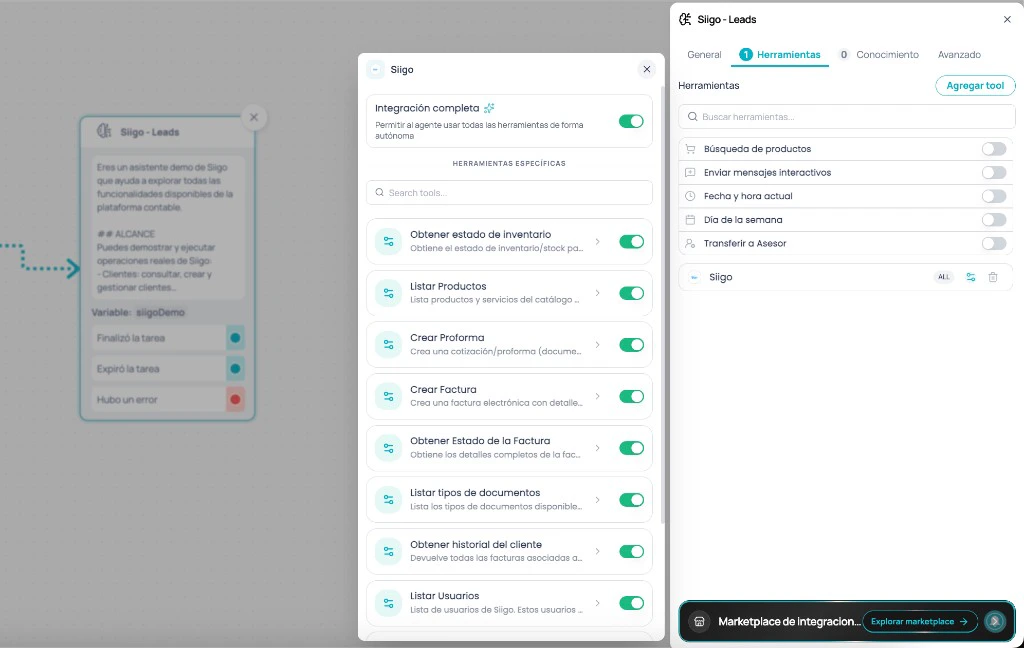
In Canvas
Ideal when you need full flow control (for example: validate customer -> issue invoice -> record payment -> notify).Configure body and memory
Fill out the JSON request body and, if needed, Save response in a memory variable.
Use cases
Automatic electronic invoicing for DIAN
Automatic electronic invoicing for DIAN
Once purchase is confirmed in chat, the flow issues and sends a DIAN-valid invoice without team intervention.Typical flow:
- Customer confirms purchase and provides identification data
- Flow issues the electronic invoice from Siigo
- It sends the document to the customer by email or in chat
document_id with List document types and seller_id with List Users, and issues the invoice with Create Invoice. The customer receives invoice number and PDF URL in the same chat.Impact:- Immediate invoicing from conversational channel
- Automated tax compliance with DIAN
Account statement and invoice status queries
Account statement and invoice status queries
Customers can check pending invoice status without contacting the collections team.Typical flow:
- Customer requests account status in conversation
- Agent queries active invoices in Siigo
- It summarizes pending balances, due dates, and payment options
- Fewer calls and messages to accounts receivable team
- B2B self-service for account statements
Quoting, invoicing, and payment in the same flow
Quoting, invoicing, and payment in the same flow
The flow supports the business process from proposal to payment recording without leaving the conversational channel.Typical flow:
- Agent gets required catalogs with List document types, List Products, List Users, and List Customers
- It generates a proforma to present the proposal
- When customer confirms, it issues the invoice with Create Invoice
- Then it records payment with Record payment and keeps full traceability in Siigo
- Reduces manual work between quote, invoice, and collection
- Maintains operational continuity within the same flow
- Improves commercial and financial traceability
Integrations that pair well with Siigo
Gmail
Gmail
Send invoices and documents by email from the issuing flow.Gmail documentation
Google Sheets
Google Sheets
Export invoicing records for receivables control reports or accounting audits.Google Sheets documentation
HubSpot
HubSpot
Associate invoices issued in Siigo with CRM contacts or deals for end-to-end commercial traceability.HubSpot documentation
Slack
Slack
Notify the finance team when a high-value invoice is issued or a debt becomes due.Slack documentation
Related articles
Integrations
Catalog of integrations available in Marketplace.
How to use integrations in Brain
General flow to install and use integrations in Brain Studio.