
Alerts screen
Go to Settings > General. There you will find the Create button, a search bar with filters and the table with all your alerts.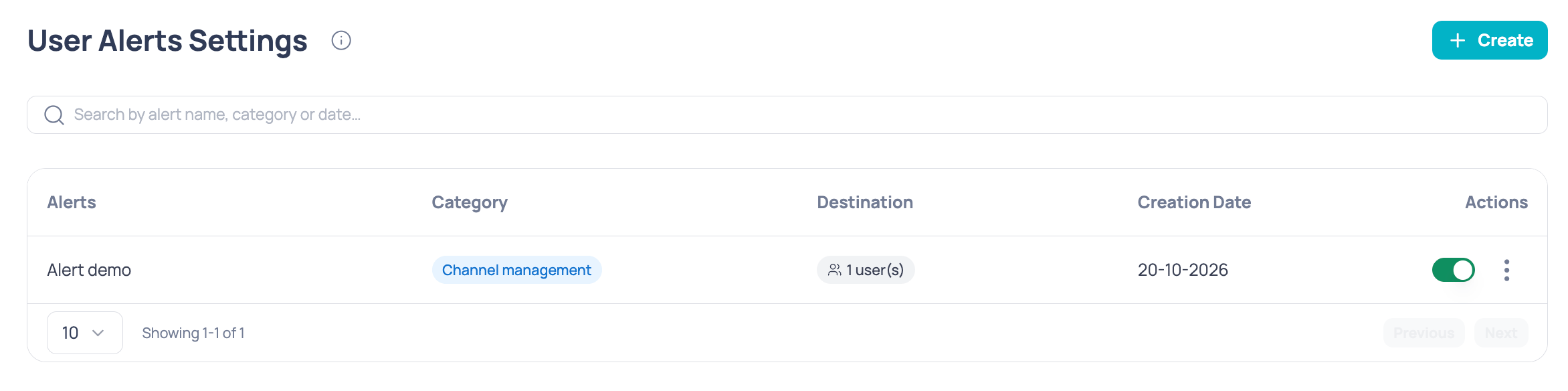
Settings > General
Search and filter
The search bar combines three criteria, shown as chips:- Name: free text over the alert name.
- Category: the module the alert belongs to.
- Date: a creation date range.
Alerts table
If you don’t have any alerts yet, the table shows “You don’t have any alerts yet”.
Create an alert
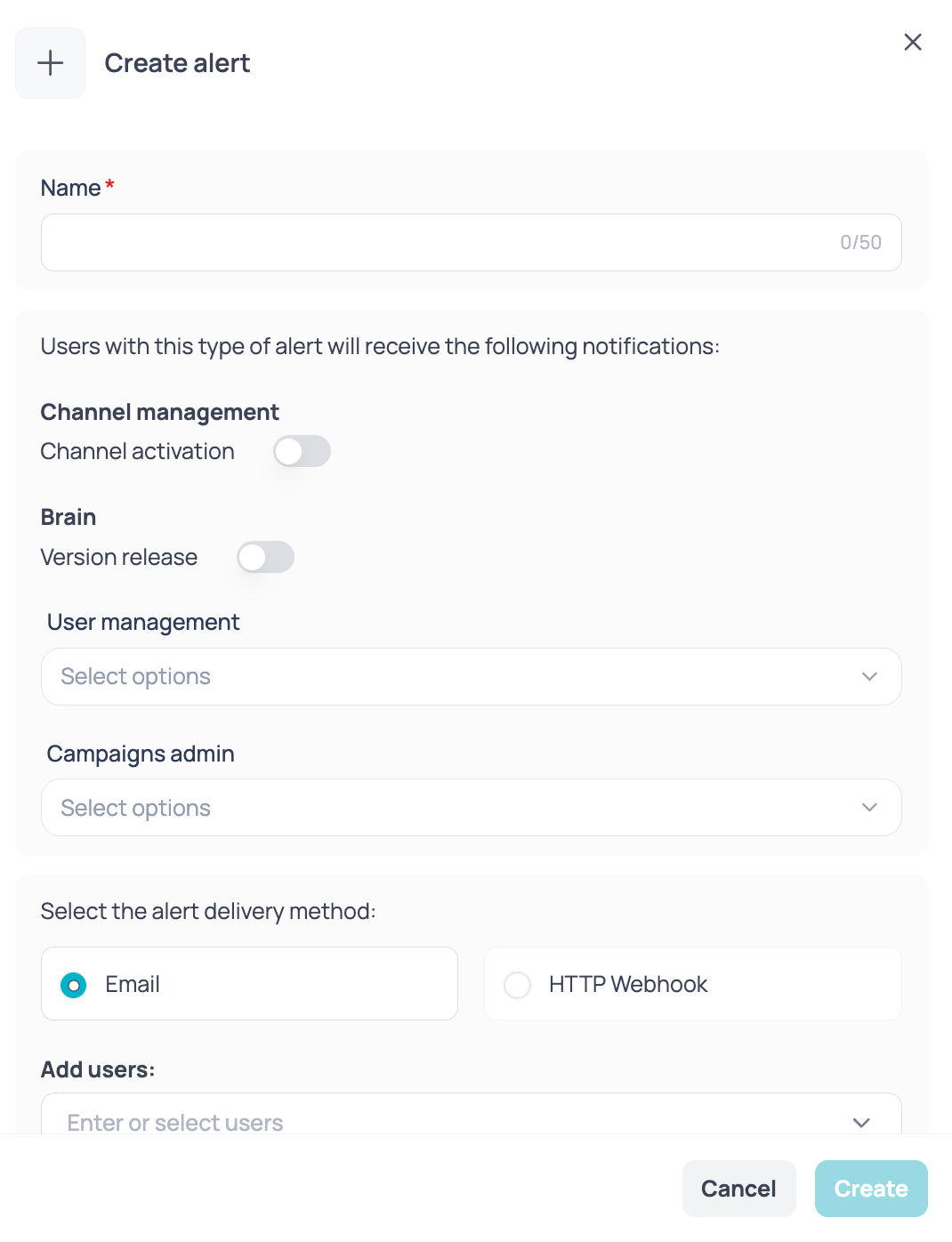
Create alert
1
Open the form
In Settings > General, click Create.
2
Enter the name
Enter the Alert name. It is required.
3
Choose the events
Turn on the switches or open the options of each module: Channel management, Brain, User management and Campaigns admin.
4
Choose the delivery method
Select Email or HTTP webhook and fill in its details (see below).
5
Create the alert
Click Create to save the alert.
Delivery method
- Email
- HTTP webhook
Notify team users. Select platform users or type external email addresses. You need at least one user or one email address.
Edit an alert
In the table, open the row menu and click Edit. The same form opens with the current data.Enable or disable an alert
Use the switch in the Actions column. You will see a success or error message when the status changes.Disabling an alert doesn’t delete it: you can enable it again whenever you want.