
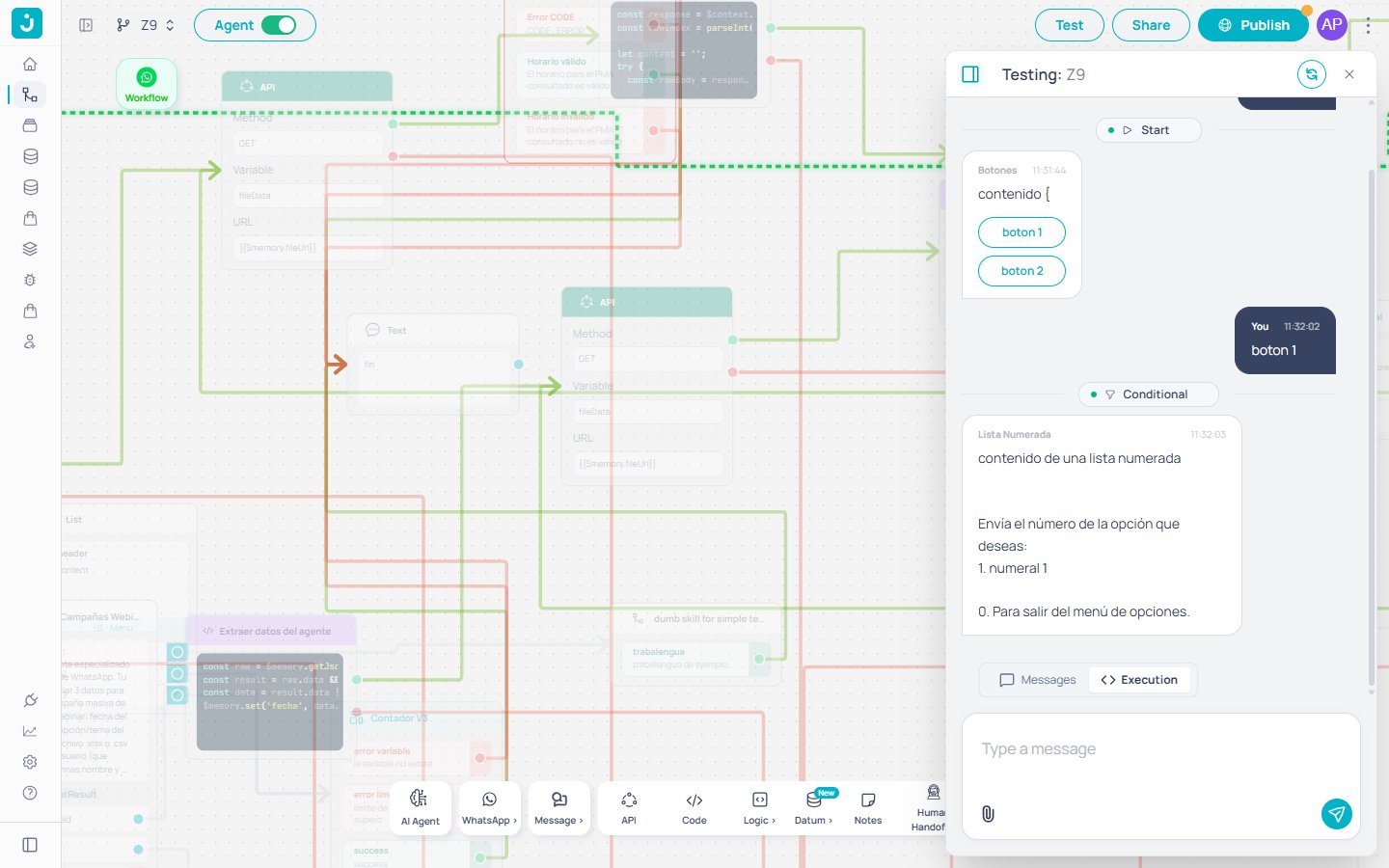
Tester open over the canvas
Open the Tester
In the canvas top bar, click Test. A side panel will open with the workflow header, the conversation area, and a field to type messages.If the workflow has never been executed, the first message you send starts a new session. Each session counts as one execution (see Workflow Executions).
Messages view and Execution view
The panel has a toggle at the bottom with two modes:
Toggle between Messages and Execution
Node indicators
In Execution view, every workflow node that runs during the test appears as a small card interleaved with the messages. The card shows:- Canvas icon of the node (Start, HTTP, Code, AI Agent, Conditional, Tool, etc.)
- Node name as configured in the canvas
- Status (green for success, red for error)
N nodes · Xms total). If the workflow calls a sub-workflow, the inner sub-workflow nodes appear as a separate group to mark the execution boundary.
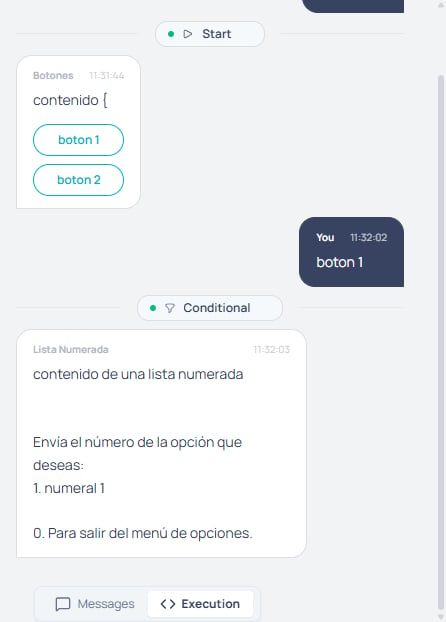
Grouped node indicators
AI cost per response
EveryAI Agent turn shows, below its last bubble, the tokens it consumed and their cost, in the format 1.665 tokens · $0,0062. Use it to compare models or measure the impact of a prompt change before you publish. You don’t need to turn anything on: the Tester always shows it. The node’s Show cost when testing on WhatsApp toggle only controls the footer on WhatsApp.
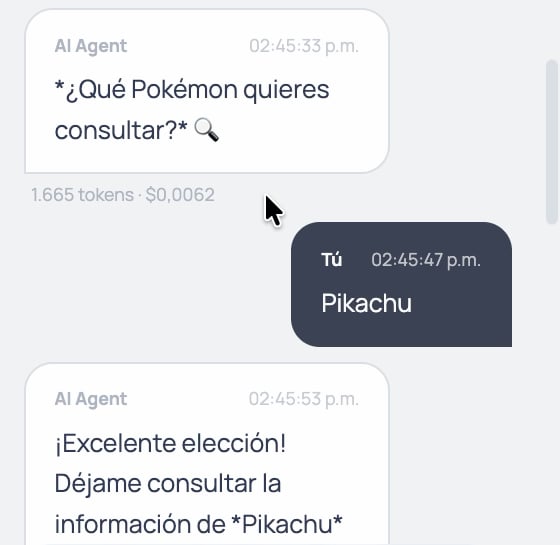
Tokens and cost below the AI Agent response
$0,0000.
The indicator only appears in the Tester and in test conversations through Jelou Apps. Production channels never show it to your users.
If the model price isn’t available, the line shows only the tokens, with no amount.
Node detail panel
Clicking on any indicator opens a resizable side panel with the full execution information for that node:Input
Input
The exact payload that entered the node.
Output
Output
What the node returned (response, generated message, conditional result, etc.).
Initial state / Final state
Initial state / Final state
Snapshot of
$memory and $context before and after the node executed.Errors
Errors
If the node failed, message and stack trace.
Copy the path of a value
Click any key inside the JSON ofInitial state or Final state to copy the full path in bracket notation to the clipboard. For example, clicking the url key inside finalState.tool copies finalState.tool.url. A “Copied ✓” tooltip confirms the action.
Detail panel actions
Above the input/output, the panel has contextual buttons:1
Go to node
Centers the canvas behind the Tester on the corresponding node. Only appears for nodes in the active workflow. For internal sub-workflow nodes, the button is hidden because the node does not live in this canvas.
2
Debug Tool
Only appears for Tool-type nodes. Opens the Tool’s internal execution with the full list of inner nodes that ran, including their own input/output/errors.
Interactive bubbles
Bubbles that are interactive in production (buttons, lists, CTAs) are now clickable inside the Tester. You don’t have to manually type the response to advance the flow: click the button as the end user would.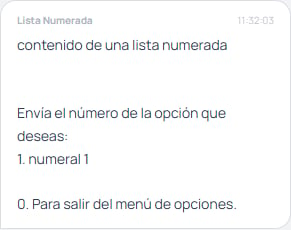
List bubble with clickable options
Limitations
- Partial node compatibility: some nodes are not fully supported by the Tester and may behave differently than they would in production. When the Tester detects one of these nodes in your flow, it shows a warning with the option Test on WhatsApp for a complete test.
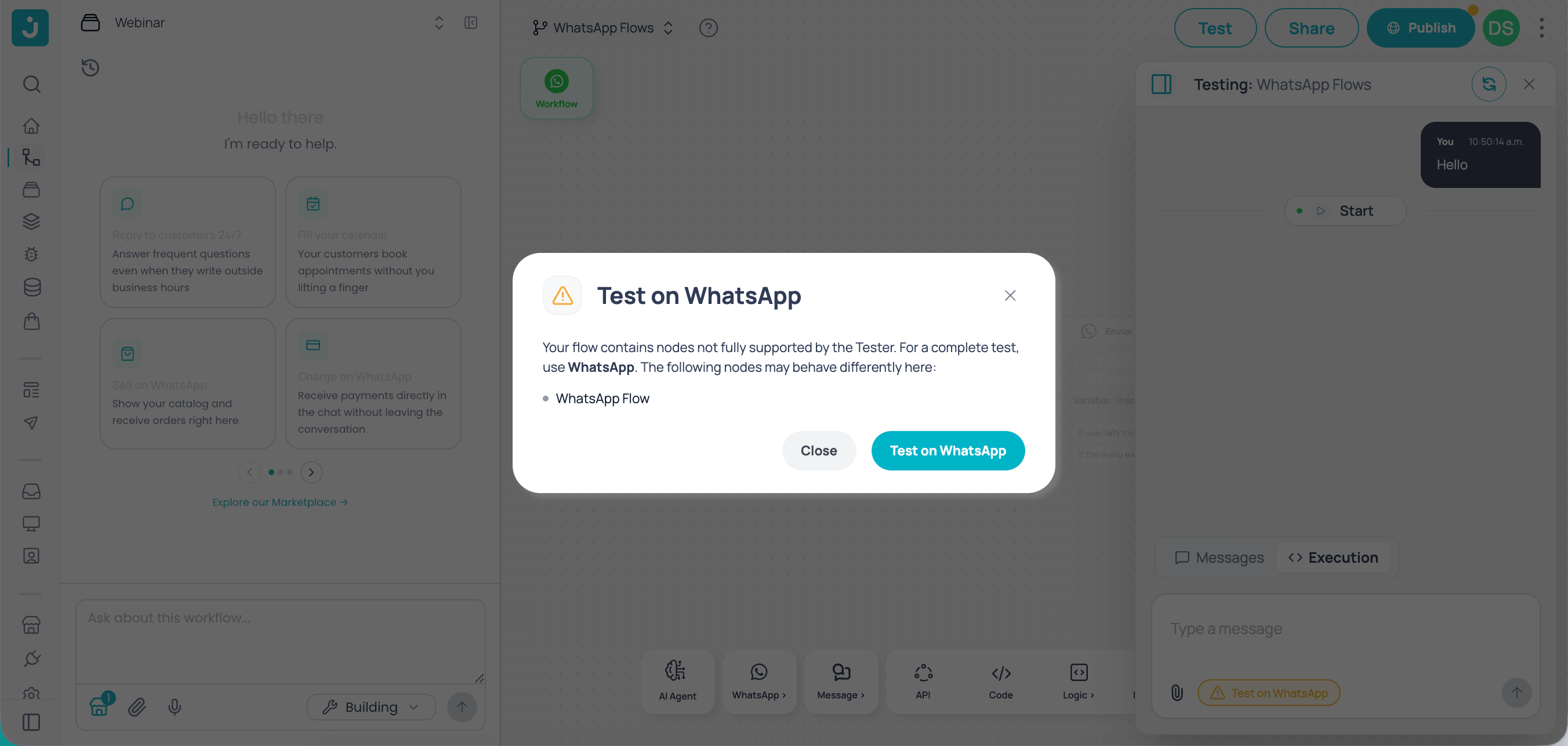
Warning for incompatible nodes in the Tester
- Inner sub-workflow nodes: the Go to node button does not apply to nodes that live on a different canvas than the active one. To inspect them, open the sub-workflow separately or use Debug Tool if the container is a Tool.
- Tests don’t affect production: the Tester session is independent of real traffic. Conversations, variables, and memory you generate here are not logged in the production Debugger and don’t count as real user conversations (they do count as executions for billing).
- One session at a time: if you close the Tester without finishing a conversation, the session is discarded. The next time you click Test, a new one starts.
Use cases
Debug an API failing in production
Debug an API failing in production
A telco team builds a flow that validates invoices via API. The API responds inconsistently and the flow breaks in production. They run the test in the Tester, click the failing HTTP node, see the full request and response, and copy the path of the problematic field to report it to the backend team, all without leaving the builder.
Validate Conditional logic
Validate Conditional logic
A retail QA team validates subscription billing flows before each release. One Conditional branch always causes problems because the matching logic depends on strings with accents. They run the test, see exactly which term matched in the Conditional node panel, and fix it without escalating to engineering.
Validate an AI Agent response
Validate an AI Agent response
A product manager configures an AI Agent that asks for name and email and saves them into
$memory.datosUsuarios. From the Tester they confirm the Final state has the correct structure ({ nombre, correo }), copy the path finalState.datosUsuarios.correo, and use it in the next text node without rebuilding it manually.Test a sub-workflow from the parent flow
Test a sub-workflow from the parent flow
A parent workflow calls an identity-validation sub-workflow. In the Tester they see the sub-workflow rendered as a separate group of indicators. They click the Tool node inside the sub-workflow and use Debug Tool to inspect the Tool’s internal execution without opening the sub-workflow in another tab.
Compare the consumption of two models
Compare the consumption of two models
A product team is choosing between two models for the AI Agent in its support flow. They run the same conversation in the Tester with each model, compare the tokens and cost line under each response, and pick the one that keeps quality with lower consumption before publishing.
Related articles
Your first workflow
Build your first workflow step by step and test it from the Tester.
Workflow executions
How executions are counted and their impact on billing.
Share a test link
Generate a public link or private WhatsApp session so your team can test the workflow.
Publish versions
When the flow is ready in the Tester, publish a version for production.