
Prerequisites
✅ Checklist to start without blockers
- You must have a verified WhatsApp account.
- You must have a Terms and Conditions PDF (public URL) to configure in the agent. This is mandatory.
- The user must be able to take photos from the chat (camera permissions must be enabled on the device).
- Recommended: define the handling flow if you enable Human in the loop (who reviews, response times, and what happens if there is no response).
How does it work?
In less than 1 minute, the user completes the following steps:Take a photo of their face
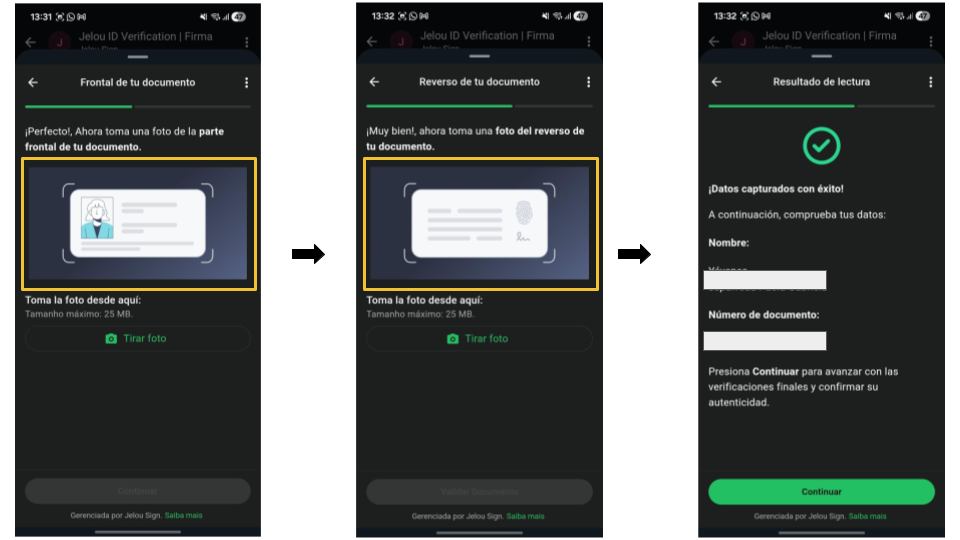
Capture photos of their identity document
How is the agent composed?
The Biometrics Agent (Flows) is made up of three specialized agents:- Liveness check agent with WhatsApp Flows - Validates the person’s liveness via photo: confirms there is a single face, detects recaptures, and evaluates fraud attempt signals.
- Document verification agent - Verifies the authenticity and validity of the document, detects recaptures, and evaluates fraud attempt signals.
- Facial comparison agent - 1:1 facial comparison between the photo and the face from the document/government entity. As a result it delivers a match percentage and binary status (approved/rejected) according to the configured threshold.
Connection from Marketplace
Access the platform
Find the agent in Marketplace
Confirm the installation
Open the agent in Brain
Initial configuration
- Click on the node, open Advanced settings (at the bottom), and select the agent version.
- None of the inputs (except the PDF) require changes if you will use the default values. If you need to change them, you can enter them in the corresponding field.
- If you want to modify any input, configure them in the sidebar.
Configure Outputs
- A text input with a custom message.
- Connect, only if you have this module.
Configuration
- Inputs
- Outputs
Maximum biometrics attempts
Maximum biometrics attempts
maxBiometricAttempts.
Available values: 1-4Notification email for exceeded retries
Notification email for exceeded retries
customerServiceEmail.
Alert email when attempts are exceeded.Accepted threshold for facial comparison
Accepted threshold for facial comparison
facematchThreshold.
Available values: 55-95
Minimum approval percentage for facial comparison.Verify document expiration date
Verify document expiration date
dateExpiracyCheck.
Available values: false, true
Enables document validity control.Enable government validation
Enable government validation
flagGovValidation.
Available values: false, true
Defines whether an official source is queried.Enable terms and conditions
Enable terms and conditions
false, true
Set to “true” to load the terms and conditions URLTerms and conditions PDF (mandatory)
Terms and conditions PDF (mandatory)
termsAndConditionsPdf. Public URL of the terms and conditions PDF.
It must explicitly detail the handling of personal data, including the use, storage, and processing of biometric information.
It must be shown to the user before starting the process.Enable Human in the loop
Enable Human in the loop
enableHumanInLoop.
Available values: false, true
Indicates whether the review process with a human agent is activated. Add-on service with additional cost.Edit flow images
Edit flow images
validateImage.
Available values: false, true
Allows replacing default images. When editing is enabled, five fields are displayed to integrate custom images.
The step-by-step guide for customization is found in the “Customization” section.Report
By default a database called “Biometrics Agent Report” is created with the following fields:| Field | Description |
|---|---|
| Biometrics Code | Unique process identifier |
| Date and Time | Verification timestamp |
| Biometrics Result | Final process status |
| Identification Number | User’s document |
| Identification Type | Document type |
| First Names | User’s first names |
| Last Names | User’s last names |
| Date of Birth | Date of birth |
| Phone | User’s phone number |
| Email address | |
| Liveness Check Result | Liveness check status |
| Selfie Photo | URL of extracted photo |
| Document Check Result | Document validation status |
| Front Document Photo | URL of front image |
| Back Document Photo | URL of back image |
| Face Photo on Document | URL of document face photo |
| Government Entity | Entity queried |
| Facematch Result | Facial match percentage |
| Biometrics Report | Web report URL |
| Failure Description | Error details (if applicable) |
| Observations | Additional notes |
Customization
You can customize only the images that appear on each screen; the rest of the flow copy is not customizable.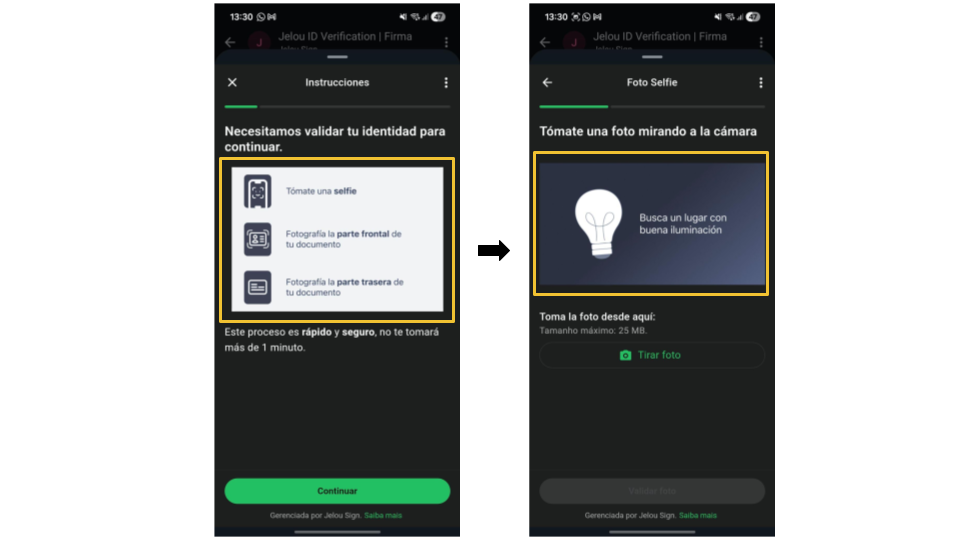
Frequently asked questions
Does the agent respond if I don't enter data in any field?
Does the agent respond if I don't enter data in any field?
What documents are needed during the biometric process?
What documents are needed during the biometric process?
Is it possible to skip any step in this agent?
Is it possible to skip any step in this agent?
Can I customize the texts in this agent?
Can I customize the texts in this agent?
What happens if I enable 'Human in the Loop (HIL)'?
What happens if I enable 'Human in the Loop (HIL)'?
What security measures does this agent apply?
What security measures does this agent apply?
- Encryption in transit and at rest.
- Evidence recording with hashes to ensure integrity.
- Access control with roles (RBAC) and MFA.
How many attempts does the user have before being blocked?
How many attempts does the user have before being blocked?
- Maximum biometrics attempts (
maxBiometricAttempts): controls biometrics attempts.