
- General — Model and instructions
- Tools — Native, custom, and MCP tools
- Context — Initial message, conversation history, and external knowledge
- Advanced — Save response, fallback model, security, expiration, DLP, and more
- Events — Tracking events and evaluation conditions
General
The General tab contains the essential agent configuration.Model
Select the language model (LLM) the agent will use to generate responses. Consider latency, cost, and task complexity before making your selection. Available models include: OpenAI- GPT 4.1 Mini: a simplified variant of GPT-4.1 optimized for fast responses with lower resource demands.
- GPT 4.1: a refined evolution of GPT-4, with better understanding, reasoning, and accuracy.
- GPT 4-o (Azure): a GPT 4-o version hosted on Azure, focused on stability and performance in enterprise environments. Supports vision.
- GPT 4-o Mini: a faster, lighter version of GPT 4-o, oriented toward speed-first use cases. Supports vision.
- GPT 5.2: OpenAI’s latest-generation model with advanced reasoning, larger context, and high precision on complex tasks.
- Claude 3.5 Sonnet: excellent for complex tasks requiring more elaborate text and extensive contexts.
- Claude 4 Sonnet: high reasoning and analysis capability.
- Claude 4.6 Sonnet: Claude’s latest generation, with improved reasoning and greater accuracy.
- Gemini 2.5 Flash: fast processing with multimodal capabilities. Supports vision.
- Gemini 2.5 Pro: advanced reasoning with multimodal capabilities. Supports vision.
- Gemini 3 Flash: latest generation of Gemini with optimized multimodal processing. Supports vision.
- Llama 4 Scout: agile, low-latency model, ideal for quick ideas and lightweight interactions.
- Llama 4 Maverick: high-performance model designed for demanding reasoning and multi-step problem solving.
Instructions
Define the base behavior of the agent through a system prompt. The instructions determine what role it adopts, what tone it uses, and what steps it follows before responding. Make sure they are concise, concrete, and free of ambiguity. Instructions support variable interpolation using the{{$variable}} syntax, which allows you to dynamically customize behavior based on the conversation context.
The field includes a character counter that adjusts based on the selected model, since each model has a different maximum limit.
See prompting recommendations and examples
Tools
The Tools tab allows you to add tools that extend the agent’s capabilities beyond text generation. The agent autonomously decides when to invoke each tool based on the conversation context. To add tools, click the ”+ Add tools” button and select the tools you need.Native tools
These are predefined tools built into the platform. They are marked with the text “(Native)” in the selector:Custom tools
Tools created by the user from Brain Studio. When adding a custom tool you can configure:- Name and description that the model uses to decide when to invoke it.
- Custom input parameters.
- Action on execution: behavior after the tool has been executed.
MCP Tools (Model Context Protocol)
Integrate external services using the MCP standard. There are two types of integration:Native MCP apps
Applications from the Jelou marketplace that are installed directly on the platform. Each MCP app can be configured in two modes:- Integration mode: enables all of the app’s tools at once.
- Granular mode: allows you to select individual tools from the app and configure each one separately.
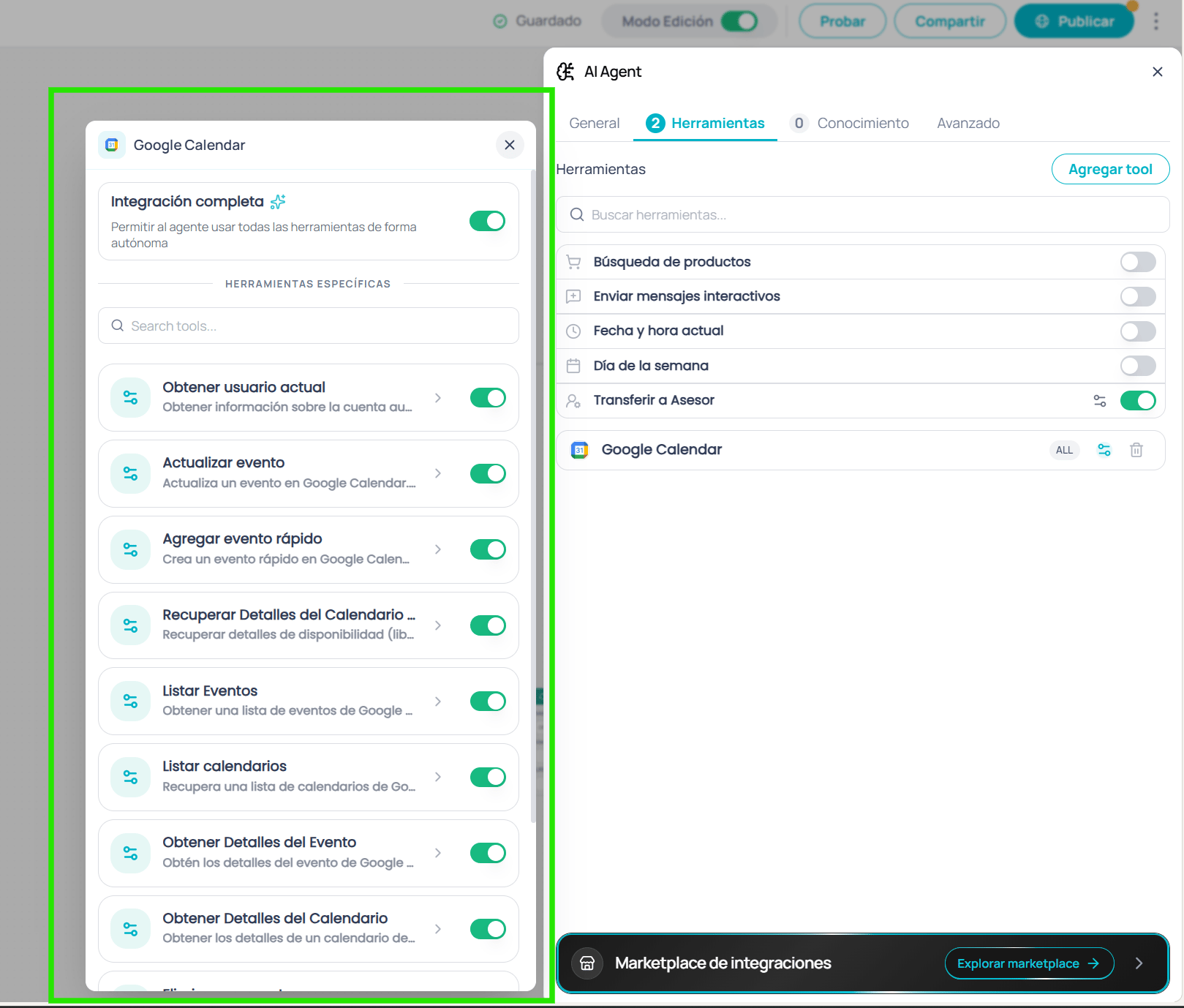
MCP app configuration in granular mode with individual tools
Default parameters
In granular mode, each individual tool allows you to configure default parameters. Click on a tool to open its detail view, where you can:- View all tool parameters with their type, description, and whether they are required.
- Set default values that the agent will use on every invocation, instead of letting the AI decide.
- Use the variable selector to inject dynamic values from the flow (e.g.,
{{$context.email}}). - Toggle between form view and JSON editor to edit all parameters at once.
- Search parameters by name when the tool has many.
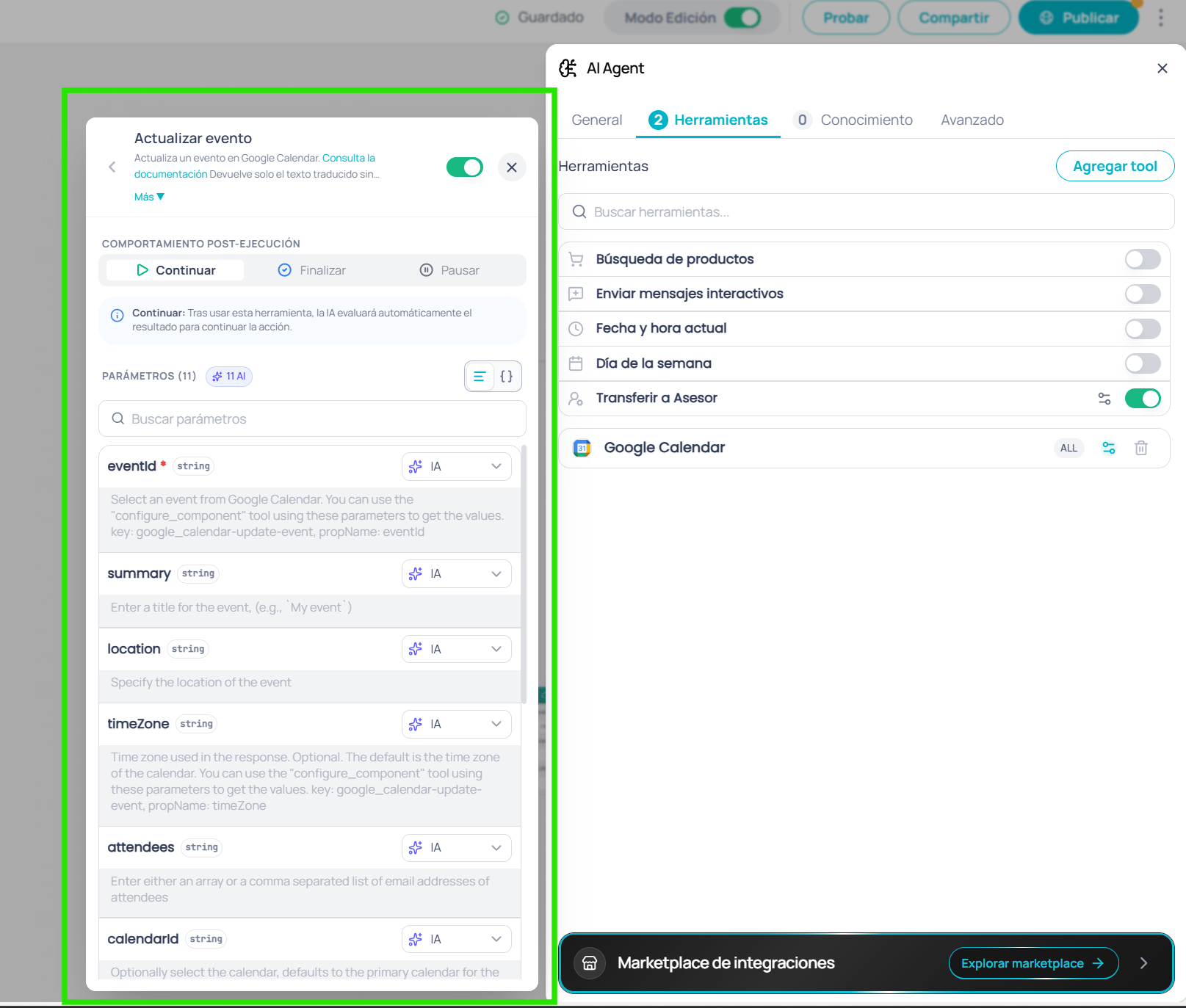
Detail view of an MCP tool with its configurable parameters
External MCP servers
Connections to your own MCP servers via custom URL.Configure the server URL
Add headers (optional)
Select the tools
Tool actions
Each tool (native, custom, or MCP) can configure an action that runs after it is invoked:Token optimization
At the top of the Tools tab you’ll find the Token optimization switch. When enabled, the results that tools return to the agent are serialized in the TOON format (Token-Oriented Object Notation) instead of JSON before being sent to the model. TOON is a compact structured-data format designed for language models: it declares fields once and removes JSON’s repetitive punctuation (braces, quotes, and duplicated keys on every item). The information is the same; only its representation changes, so the agent interprets it the same way while using fewer tokens. The same tool result in both formats:Context
The Context tab centralizes the configuration of the agent’s input context: how each conversation starts, how many previous messages it remembers, and what knowledge sources it consults to generate its responses.Initial message
Defines the text the agent receives as the first user turn when the node begins executing. This setting determines what information the agent starts with to generate its first response.Use case examples
Pass the last message — Customer service
A user writes “What are the business hours?” and the agent receives it directly as input, generating a response based on its knowledge base.
No user message — When there is no real user query
Use this option when the last available message does not represent a real user query. Common scenarios:
- Post-HSM campaign: the user responded to a WhatsApp template by tapping a button like “Yes, I’m interested”. That payload is not a query — the agent should start from its instructions and the flow’s context.
- Automated workflows: the flow was triggered by a webhook, scheduler, or external API. There is no user message because no user wrote anything.
-
Post-data collection: previous Input nodes already collected name, order number, etc. The last message is a data point (e.g.,
"ORD-12345"), not a question. The agent should respond based on the information already stored in memory.
Custom — Tailored context with variables
Allows you to build an input message by combining flow variables. For example, to pass context information to the agent:
{{$variable}} syntax and has a 100-character limit. Use the variable selector to explore the available variables in your flow.Remember previous messages
When enabled, the agent includes as context the last N messages of the conversation each time it starts. This allows maintaining conversational coherence when the user resumes a session after an interval.Enable history
Define the count
Upload block
The unified upload block accepts documents and images in the same interaction. You can add files in three ways:- Drag and drop files directly onto the block
- Click on the block to open the file selector
- Paste a URL in the link field at the bottom of the block (supports the same document and image formats listed below)
Documents
When you upload a document, a panel opens where you define its name (maximum 30 characters) and an optional description that helps the agent understand the file’s content. Once uploaded, you can edit its metadata or delete it from the list.Images
Images are uploaded directly without additional steps and appear as thumbnails below the upload block. You can upload up to 3 images per agent.- Click a thumbnail to view it in full screen
- Hover over a thumbnail to see the delete button
Datastores
Connect Datum databases so the agent can query structured information in real time:- Select the datastore to connect
- Configure the allowed operations on the database
External context
Allows resuming this node from an external system via the resume API. Useful for workflows that require external asynchronous processing, such as validations, payments, or approvals.Enable external context
Copy the endpoint
Configure the request
executionId is available as {{$context.executionId}} within the flow and is valid for 24 hours.Memory management
The Memory management section groups a set of sources that, when enabled, connect native tools so the agent can save and recall information, read and update the contact’s CRM data, share variables between nodes, and access platform data (user, channel, and company) as context. Each source is an independent toggle: you enable only the capabilities the agent needs. The memory and CRM sources expose operations the agent invokes autonomously, while the platform context blocks are injected automatically into the prompt.Advanced
The Advanced tab contains additional settings for finer control over agent behavior.Save response
Allows you to store the agent’s last response in a variable for use in subsequent nodes of the flow.Enable save response
Define the variable name
ai_agent_response).{{$context.ai_agent_response}} in subsequent nodes of the flow.
Fallback model
Select an alternative model that will be used automatically if the primary model fails or is unavailable.Processing options
Independent options to enable additional capabilities for messages the user sends during the conversation:Multi-message response
Splits the agent’s response into separate bubbles when it contains paragraph breaks (\n\n), media URLs, or lists. Image, video, audio, or document URLs are sent as independent media bubbles according to the channel, while numbered lists are kept together.
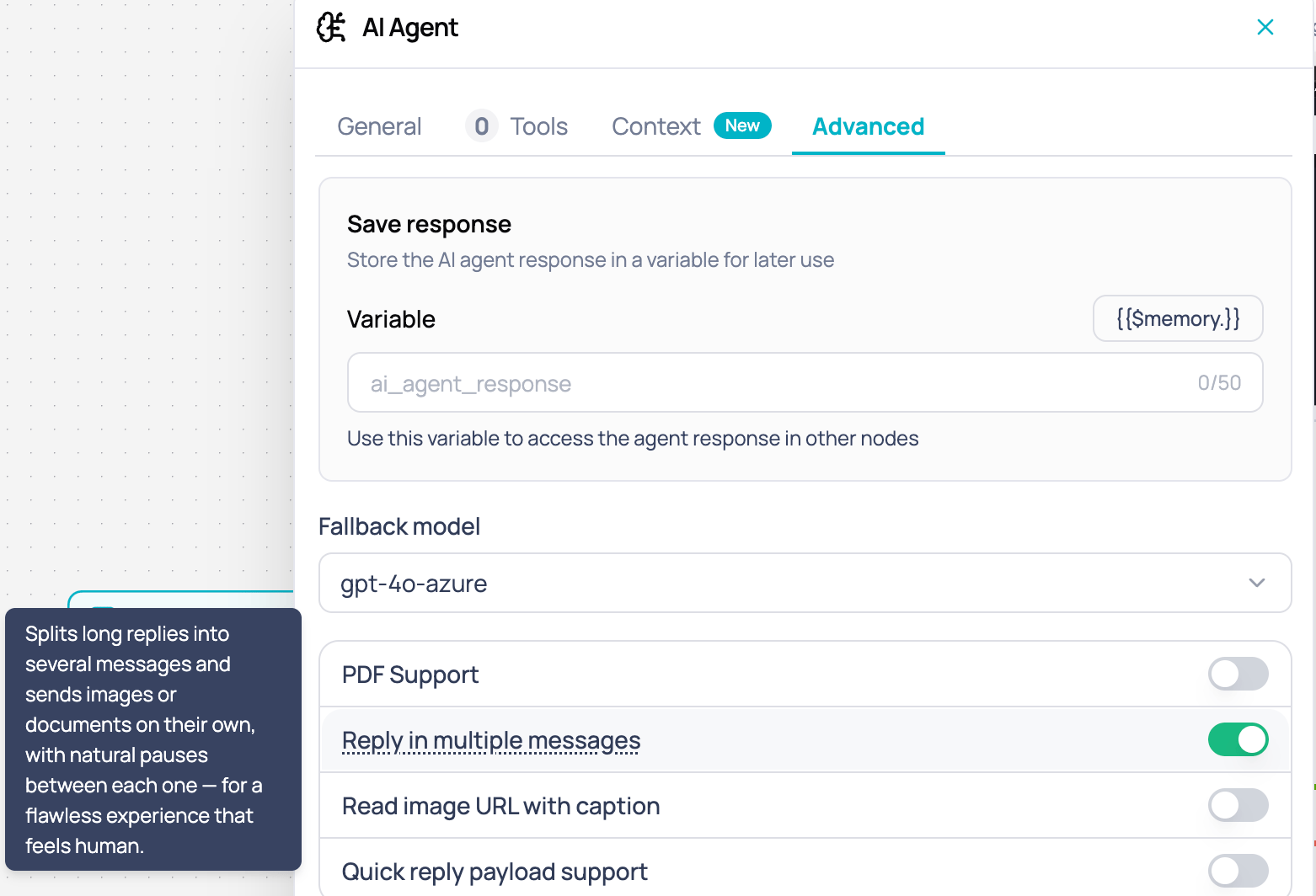
Multi-message response toggle in the Advanced tab of the AI Agent node
Show cost when testing on WhatsApp
Adds, at the end of each agent response on the Jelou Apps test numbers, the tokens that turn consumed and their cost, as a quote below the text (> 2,147 tokens · $0.0006). Use it to measure consumption while you test the flow on WhatsApp.
The Tester doesn’t depend on this toggle: it always shows each turn’s tokens and cost as a line below the turn’s last bubble (1.665 tokens · $0,0062).
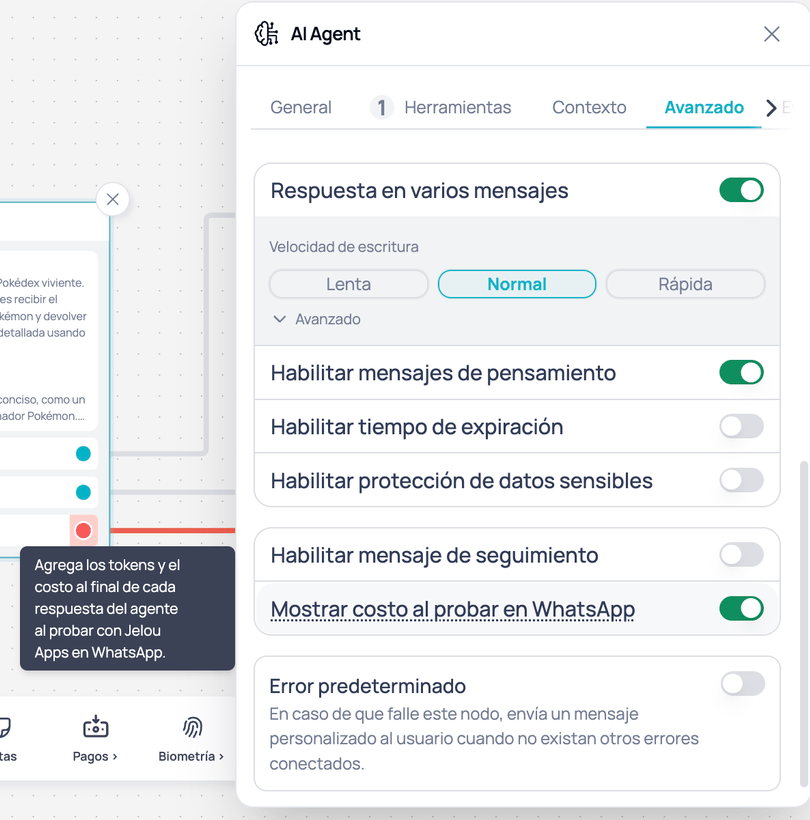
Show cost when testing on WhatsApp toggle in the Advanced tab of the AI Agent node
AI Agent node you want to measure in Jelou Apps. Even if you leave it on, once you connect your own WhatsApp number your users never see the footer.Security (Guardrails)
Configure the agent’s level of protection against misuse, prompt injection, and out-of-scope requests.Enable security
Select security level
Model Armor (optional)
Expiration
Configure a time limit for the agent session. If the user does not respond within the configured time, the session expires automatically.Enable expiration
Configure duration
- Minutes: range from 1 to 1200
- Hours: range from 1 to 20
- Default value: 8 hours (28,800 seconds)
DLP (Data Loss Prevention)
Enable automatic detection and masking of sensitive information in agent conversations.Enable DLP
Select sensitive data types
Customize replacements (optional)
Follow-up message
Lets the agent proactively resume an inactive conversation by sending a reminder to a user who stopped replying. When you turn on the Enable follow-up message toggle, a settings button appears that opens a modal where you define how the reminder behaves.Enable follow-up message
Choose the mode
- Automatic: the agent writes the reminder on its own based on the conversation.
- Manual: you write an instruction that defines how the agent should behave when resuming. The field accepts up to 900 characters.
Set the limits
Events
The Events tab groups the node’s instrumentation into two sections: Event configuration and Evaluation conditions. Both feed your metrics and performance dashboards.Event configuration
Registers tracking events that fire every time the node runs, with a name and up to 5 custom properties per event. This section works the same as in the other instrumentable nodes. See the full node events guideEvaluation conditions
Evaluation conditions let you measure your agent’s quality and outcomes. You define through a prompt what must be true in a conversation; when the agent ends the conversation, it analyzes the full history against each active condition. For every condition that is met, an event named after the condition fires, ready to analyze in Metrics.Add a condition
Enable or disable conditions
Use cases
Measure booked appointments in a sales agent
Measure booked appointments in a sales agent
appointment_booked condition is configured with the instruction “It is met if the user confirmed an appointment with a specific date and time”. Every conversation that ends with a confirmed appointment fires the appointment_booked event, and the metrics show how many appointments the agent generates per day.Detect unsatisfied customers
Detect unsatisfied customers
unsatisfied_customer condition is configured with the instruction “It is met if the user expressed annoyance or frustration, or asked to talk to a human without being attended”. The event makes it possible to quantify problematic conversations and prioritize improvements to the agent’s instructions.Configuration example
A typical configuration flow for a customer service agent:Configure General
Add Tools
Configure Context
Adjust Advanced