
- Have a flow in Brain Studio ready (for example, an AI Agent that handles a sales process).
- Have a Mercado Pago account (to obtain test and production credentials).
- Implementation in test mode (DEV)
- Testing on WhatsApp
- Going to production (PROD)
1. Implementation in test mode (DEV)
Video 1: Installation and configuration in Brain Studio
Video 1 – Mercado Pago installation + node setup in test mode (DEV)
Initial setup
Copy your test Access Token
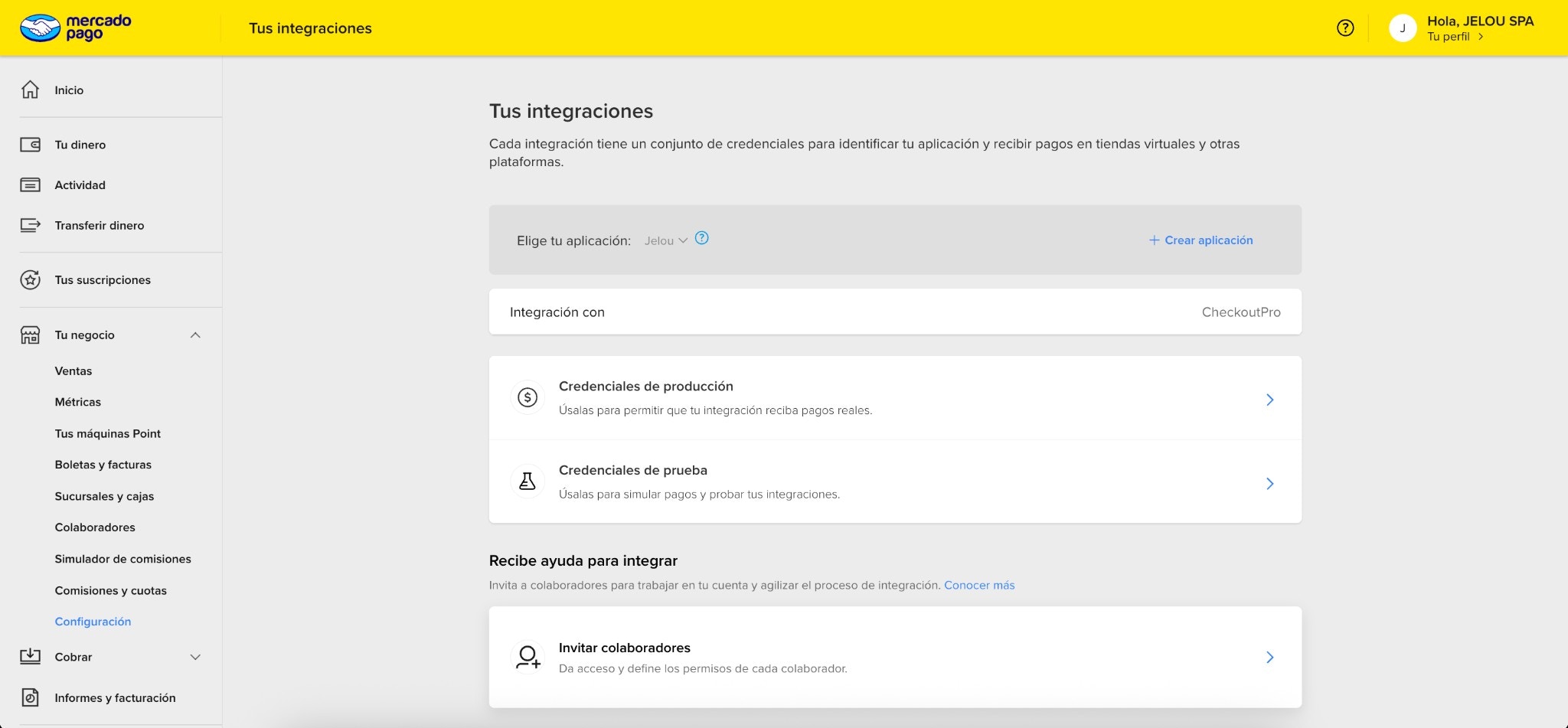
Your integrations in Mercado Pago: choose your application and access Production Credentials or Test Credentials
- Go to Test credentials
- Copy the Access Token
Install Mercado Pago from Marketplace
- Go to Marketplace
- Search for Mercado Pago
- Click Connect
- Paste your test Access Token
- Click Install
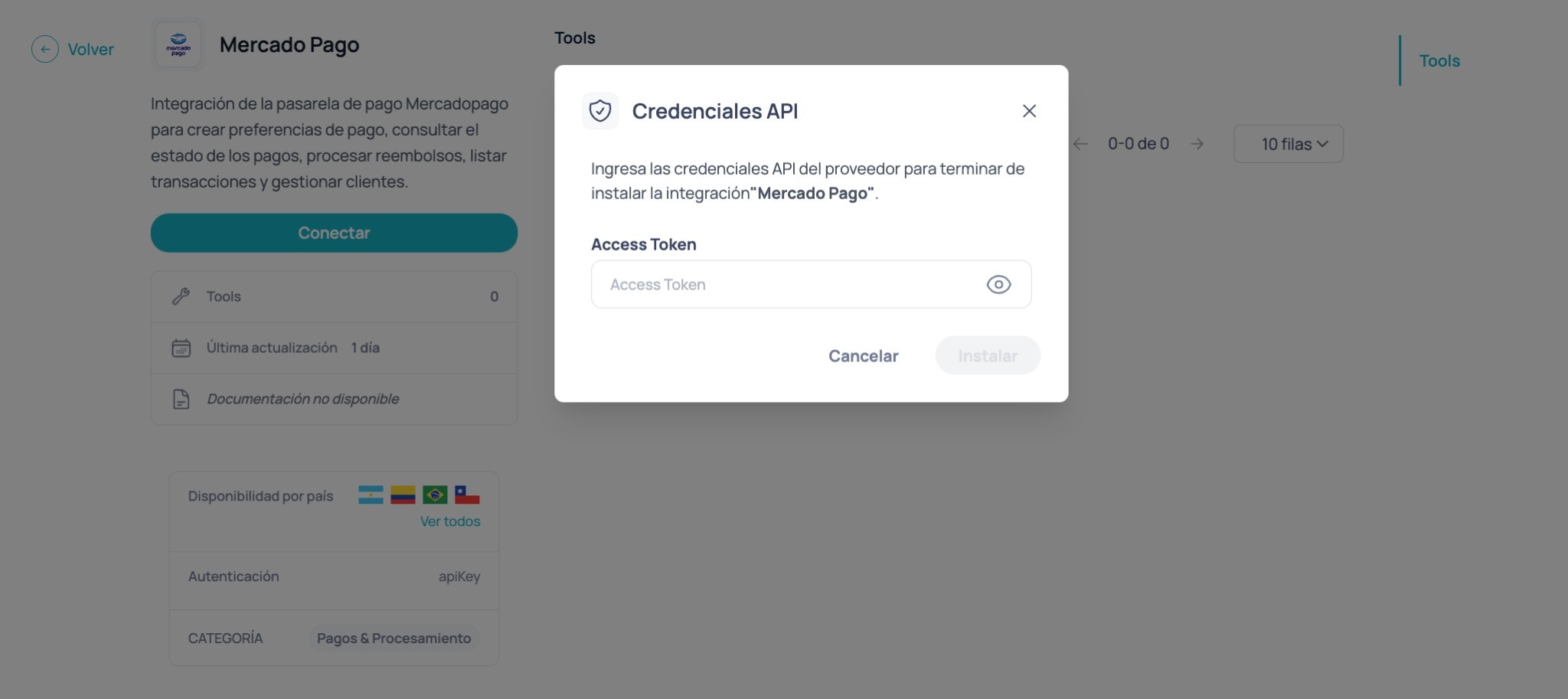
Installation modal: paste your Mercado Pago Access Token and confirm
Drag and connect the node to the Canvas
- Inside Brain, find Mercado Pago in the Marketplace folder in the side panel, and drag it to the canvas
- Connect it after the step where the user confirms their purchase or reservation.
Configure Inputs: What is each field?
Define three fundamental things at the time of the charge:- What you are charging for (reason + amount + currency)
- Who you are charging (buyer email)
- Under what rules (environment, taxes, expiration, metadata)
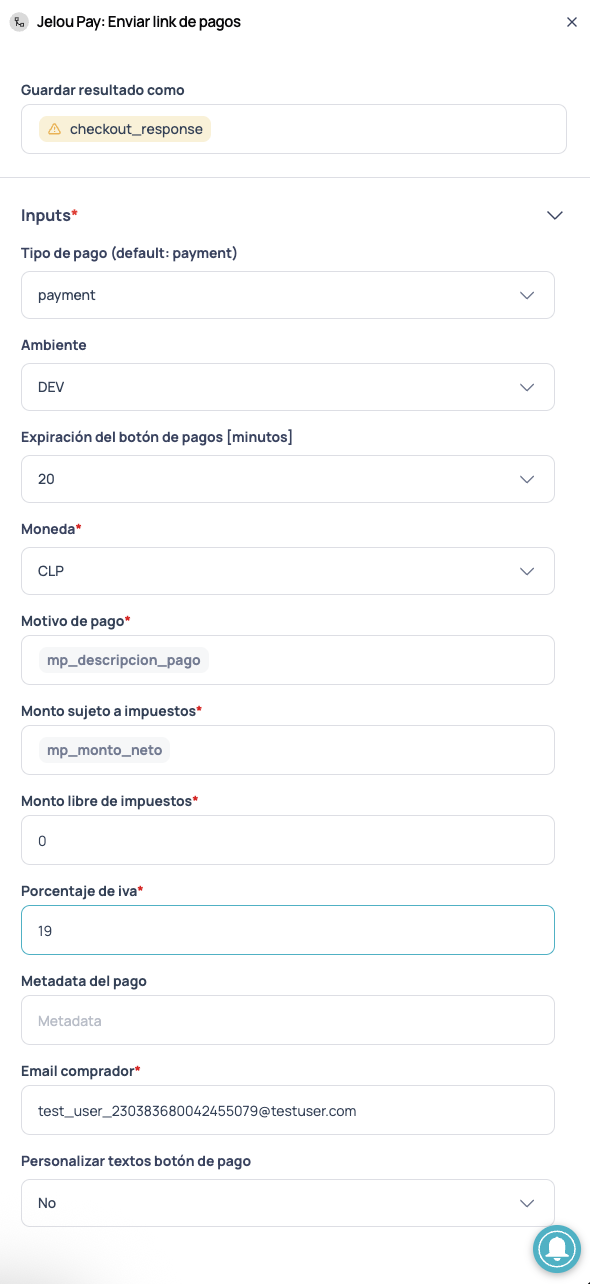
Input configuration panel
What you must complete
Before going into detail, make sure you have these three elements clear:- A readable payment reason (e.g., “Valpo Walk Tour - 2 ticket(s)”)
- A correct amount (net if you work with taxes)
- A valid buyer email (in DEV it must be a test user)
Summary of node inputs
Before going into detail, there are two key ideas:- This node creates the charge (with amount, currency, taxes, reason, and email).
- This node returns a response (JSON) that you can reuse later (for example, to display a receipt or save payment IDs).
Save result as
At the top of the node you will see Save result as. There you define the name with which Brain Studio will save the complete tool response as a JSON in Memory.- In this tutorial we use:
checkout_response - You can then read it from a Code node with something like:
const r = $memory.getJson('checkout_response')
- Memory persists between conversations (useful for querying the payment status later).
- Context is only available during the current conversation.
Detail of each input
Below is a practical guide on what to put in each field (in the same order you will see in the node).Payment type (default: payment)
Leave it as payment unless your implementation has another type enabled/defined. In a generic tutorial, payment is correct.
Environment (DEV / PROD)
- DEV: controlled testing with test credentials.
- PROD: real charges with production credentials.
Button expiration (minutes)
Typical example:20.
This avoids out-of-context payments (“I opened it 3 hours later”) and helps the conversational flow remain coherent.
Currency
Select the actual charge currency according to country/operation. Examples:CLP, MXN, COP, PEN, etc.
Payment reason
This is the text that lets you easily identify the charge. Practical recommendation:- Use a readable variable (e.g.,
mp_payment_description) - Or clear text such as:
Valpo Walk Tour - 2 ticket(s)
Taxable amount + Tax-free amount + VAT
Here you define the structure of the amount.- Taxable amount: the part that does pay VAT (normally the net).
- Tax-free amount: the exempt part (if it does not exist in your case, leave it as
0). - VAT percentage: for example
19.
- Taxable amount = net (e.g.,
20168) - Tax-free amount =
0 - VAT =
19
- Use
0as appropriate in your implementation and maintain consistency with your calculation (the important thing is not to “invent” VAT if it does not apply).
Payment metadata
This field is optional but useful; it lets you attach context for traceability. Recommendation: minimalist and intentional. Only save what you would actually use for:- payment reconciliation
- debugging
- or user support
order_idorder_reference_id(if your backend uses it)tour_sluguser_id
Buyer email (very important in DEV)
In DEV mode it is extremely important that the buyer is a test user, as required by Mercado Pago. In this tutorial we assume:- buyer email = payer email (they are the same)
Customize payment button text (optional)
By default it comes as No. If you change it to Yes, the node enables extra fields to customize the message the user will see before opening the checkout. This is useful when you want the CTA to feel more contextual (and less generic), without changing the flow or the checkout itself.Header(required)Body(required)Footer(required)
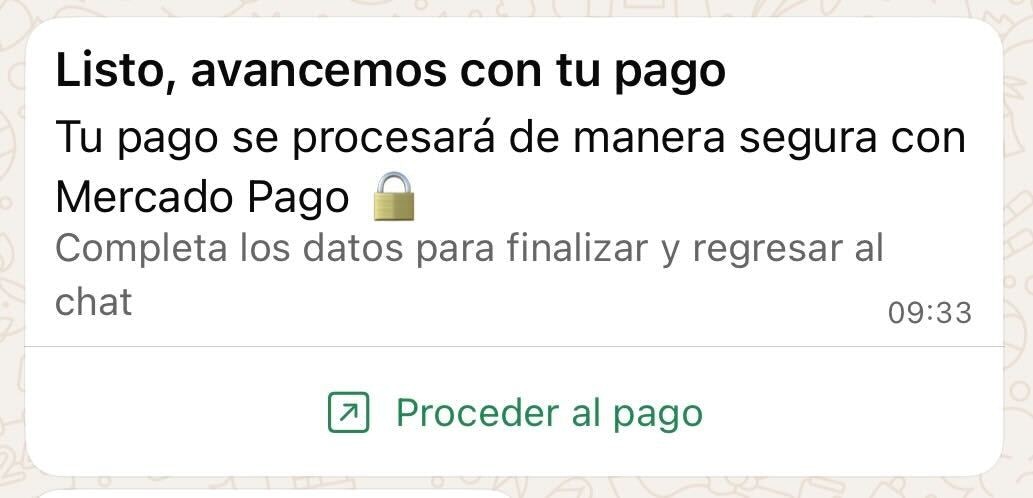
Example of message with customized payment button in WhatsApp
Test emails by country (test mode / DEV)
In DEV, Mercado Pago only processes payments if the Buyer email belongs to a test user from the corresponding country. Copy the one you need and paste it directly into the Buyer email field of the node.🇨🇱 Chile
🇨🇱 Chile
🇵🇪 Peru
🇵🇪 Peru
🇨🇴 Colombia
🇨🇴 Colombia
🇲🇽 Mexico
🇲🇽 Mexico
🇧🇷 Brazil
🇧🇷 Brazil
🇦🇷 Argentina
🇦🇷 Argentina
🇺🇾 Uruguay
🇺🇾 Uruguay
Node configuration: Outputs
The node exposes different outputs depending on the payment status.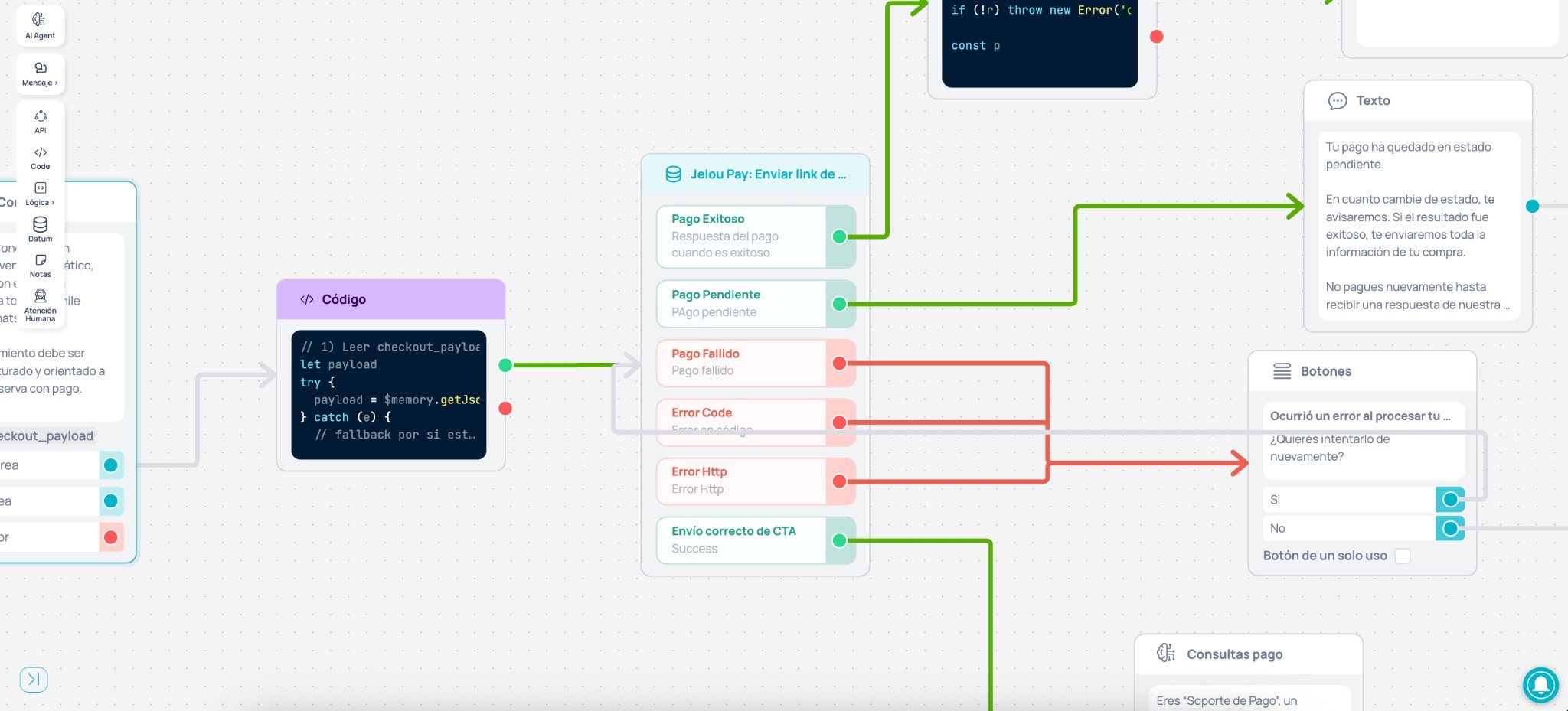
Node output configuration: Correct CTA delivery, Successful Payment, Pending, Failed, Error Code, Error Http
Quick output map
- Correct CTA delivery → The button was sent to the user (no payment result yet).
- Successful Payment → The payment was approved.
- Pending Payment → The payment was initiated but not yet credited.
- Failed Payment → The payment was rejected or not completed.
- Error Code / Error Http → Technical error from the flow or from the request.
Outputs and what to connect
Correct CTA delivery (Success)
This means the payment button was sent to the user, but they have not yet taken an action inside the Webview that determines the transaction status (Approved, Rejected, Pending, Error). Recommendation: connect a post-CTA support AI Agent. This way, when the user receives the payment button, they will have someone on the other side: an agent with the appropriate context who can answer frequent questions, reassure them, and help complete the payment without restarting the sale.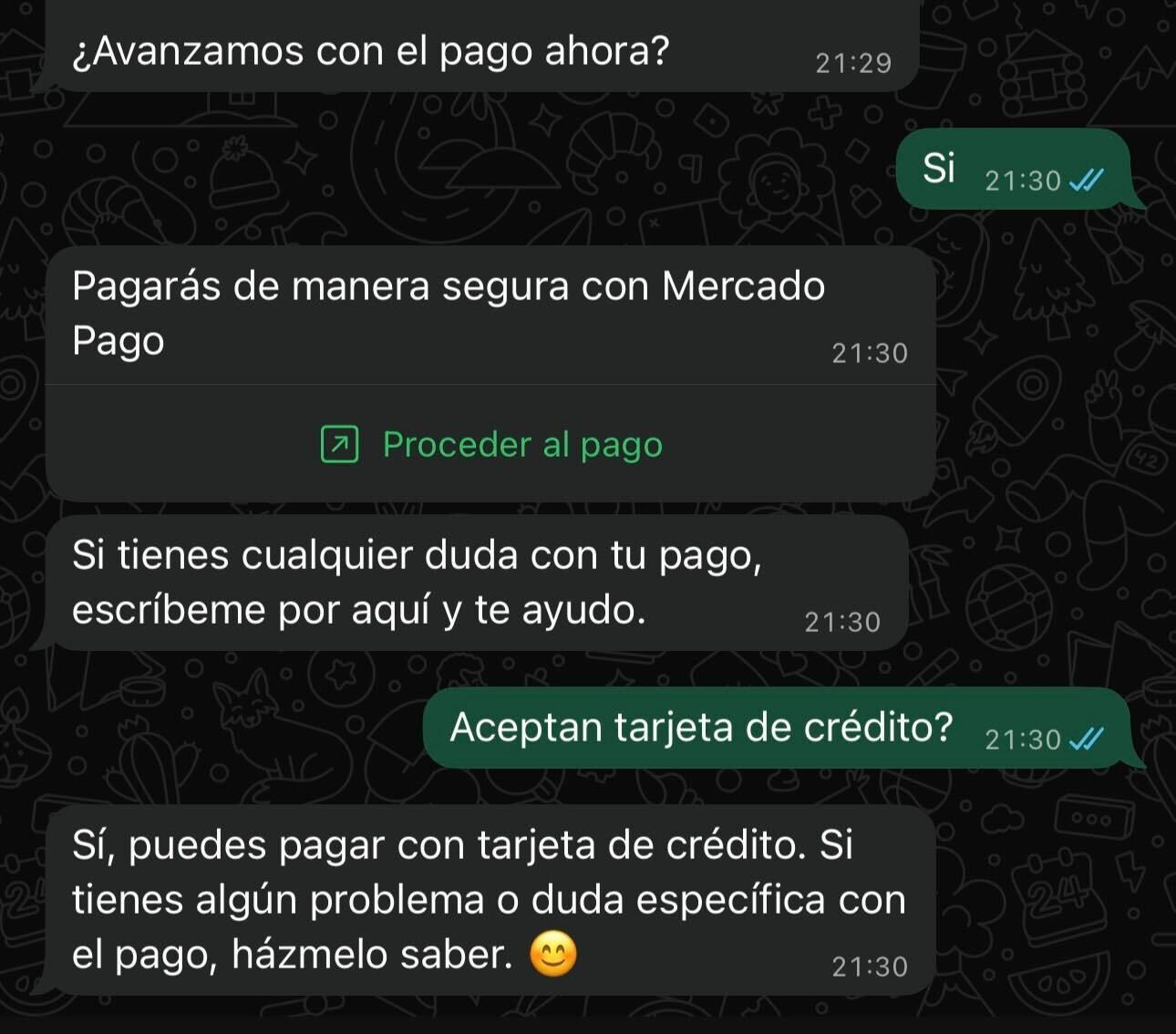
Payment button, proactive support message, and response to a question (credit card)
Example prompt
The prompt is designed for an AI Agent on the Correct CTA delivery output, with the Gmail tool (Marketplace) connected to send support tickets by email when the user requests it. You can copy it and adjust the tone or rules to your brand.View post-CTA support prompt
View post-CTA support prompt
Successful Payment
The payment was approved. Recommendation:- Connect a Code node to normalize and save the minimum in Context.
- Then a Text node that displays the short receipt (receipt line).
Example: Normalization code
This node readscheckout_response from memory and saves to context only what is reusable.
Normalization code example
Normalization code example
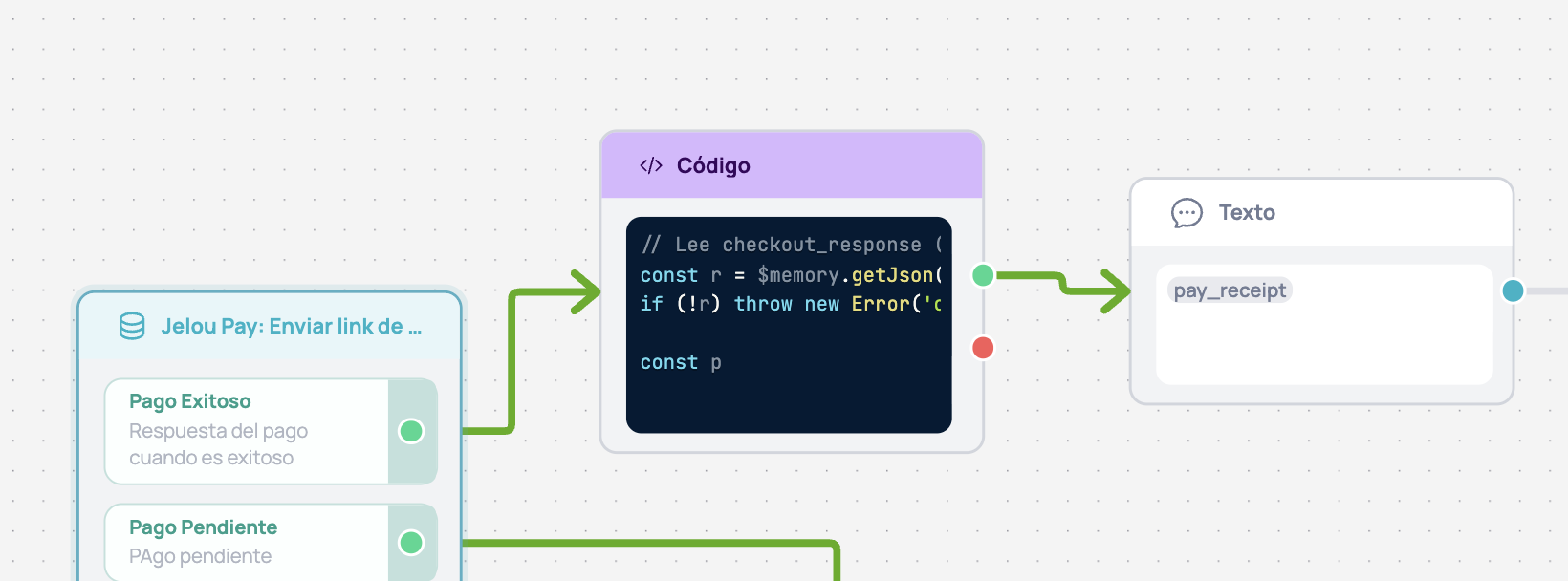
Successful Payment flow → Code (normalization) → Text (pay_receipt)
Pending Payment
The payment is pending. Recommendation:- Connect a Text node with a brief explanation.
- Then route to whatever flow comes next (wait, follow-up, support, etc.).
Failed Payment
The payment failed (rejection / not credited). Recommendation:- Connect a clear and brief Text node.
- Offer a retry or method change.
- If the user continues to have issues, route to support.
Error Code / Error Http
Technical errors from your flow (code) or from the HTTP request. Recommendation:- Connect an error handling block.
- Show a brief message + retry option + support.
- Avoid exposing technical details to the end user.
2. Testing on WhatsApp
Once you have the node configured (inputs + connected outputs), it is time to test the complete flow from WhatsApp.Video 2: Testing from WhatsApp (DEV)
Video 2 – Testing from a mobile phone with test cards (DEV)
How to start the test from WhatsApp
In Brain Studio you can start a real WhatsApp test in seconds.Open the Test panel
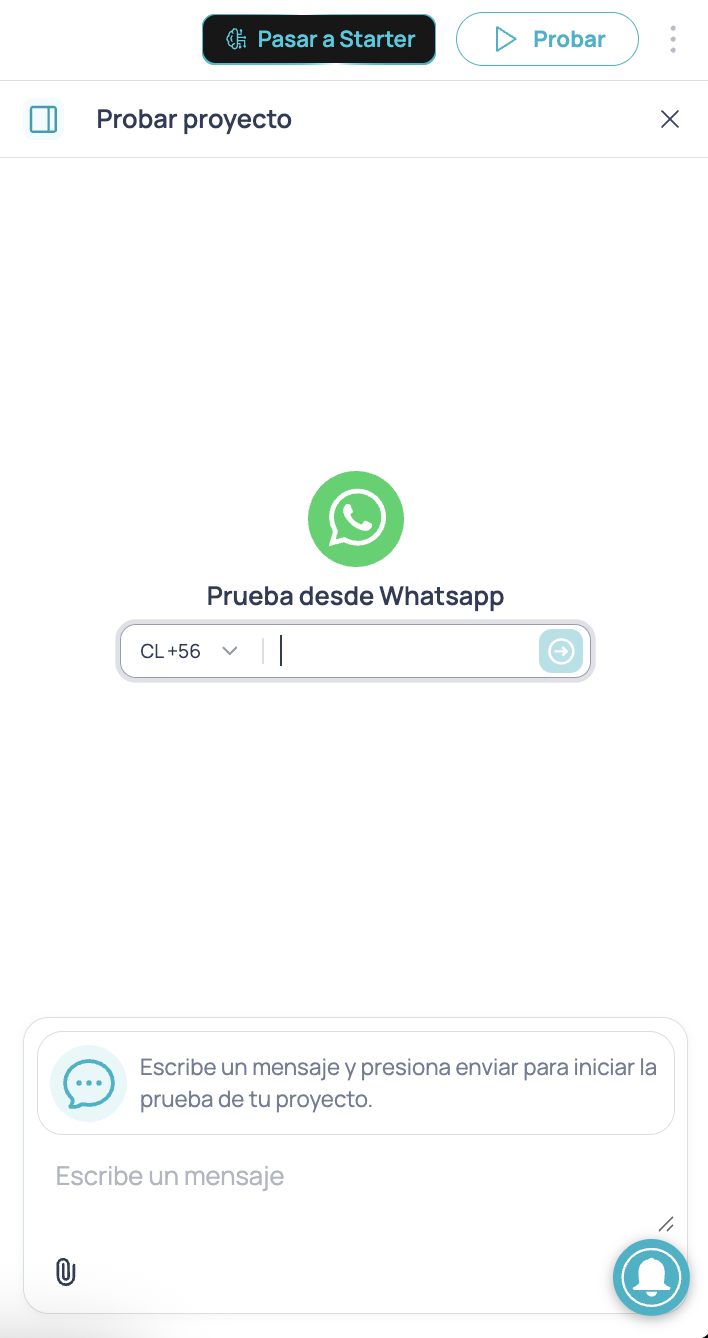
Test project panel: start a test from WhatsApp by entering your number
Enter your number and send the first message
- Select your prefix (e.g., CL +56)
- Enter your number
- Send the first message to begin the test conversation
Complete the payment in the WebView
Test cards by country
To test different scenarios (approved payment, rejected payment, etc.), Mercado Pago publishes test cards by country.- Use test credentials.
- Use a valid test user in the Buyer email field (from the same country as your credentials).
🇨🇱 Chile
🇨🇱 Chile
🇵🇪 Peru
🇵🇪 Peru
🇨🇴 Colombia
🇨🇴 Colombia
🇲🇽 Mexico
🇲🇽 Mexico
🇧🇷 Brazil
🇧🇷 Brazil
🇦🇷 Argentina
🇦🇷 Argentina
🇺🇾 Uruguay
🇺🇾 Uruguay
3. Going to production (PROD)
Going to PROD is basically changing two things: credentials and real data. The WhatsApp experience remains the same, but now the payment affects your production account.Video 3: Production configuration + real payment
Video 3 – Going to production (PROD) and real payment
Obtain production credentials
Update credentials in Marketplace
- Go to Marketplace
- Open Mercado Pago
- Press Delete integration
- Press Install again
- Paste your production Access Token
- Press Install
Change the node environment to PROD
- Change Environment from
DEVtoPROD
Replace the Buyer email with the real email from the flow
(Optional) Customize payment button text
- Change the selector to Yes
- Complete Header, Body, and Footer (required)
Test real payment
- Approved status
- Operation number (operation ID)
- Record visible in your Mercado Pago dashboard
Next steps
Payment experiences
Payment providers
Mercado Pago - Usage and configuration
With these steps you have the flow working in test and production. From here you can record operations, issue receipts, send automatic email tickets, or integrate more providers depending on your use case.