
Requirements
To display products in the WebView you need them loaded in Jelou Shop:Shopify
Sync from Shopify
VTEX
Sync from VTEX
WooCommerce
Sync from WooCommerce
API
Upload products directly via API
Installation
1
Create a workflow
Create a new workflow for the e-commerce flow. If this is your first time, see the guide Your first workflow.
2
Configure the AI Agent node
Use an AI Agent node and choose how it connects to your store:
Then configure the following prompt:
Shopify
Shopify
In the Tools tab, select add tool and choose Shopify. The Jelou Shop MCP is included automatically with the integration.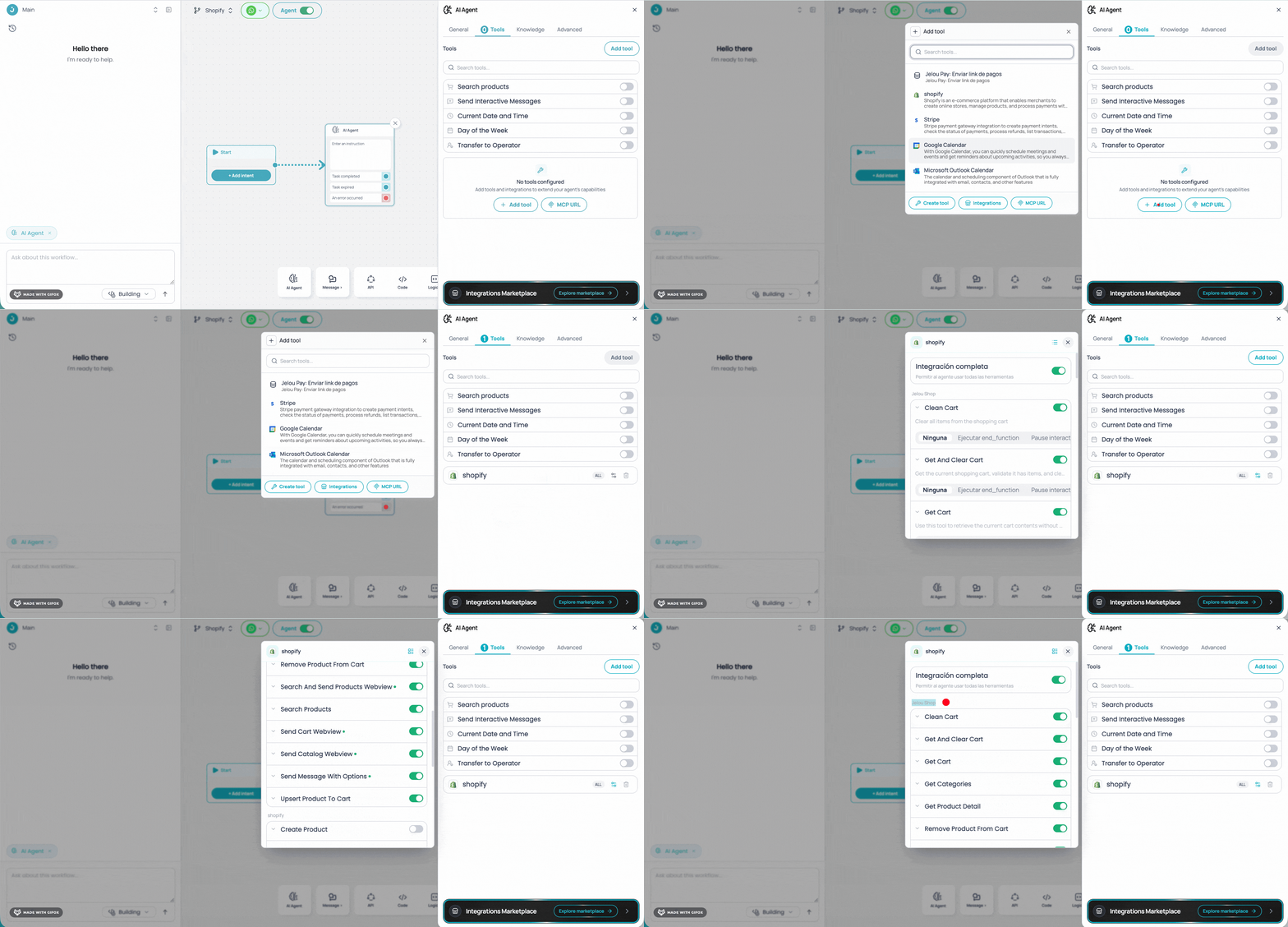
WooCommerce
WooCommerce
In the Tools tab, select add tool and choose WooCommerce. The Jelou Shop MCP is included automatically with the integration.
VTEX, Jelou Shop or API
VTEX, Jelou Shop or API
In the Tools tab, select add tool and choose Jelou Shop.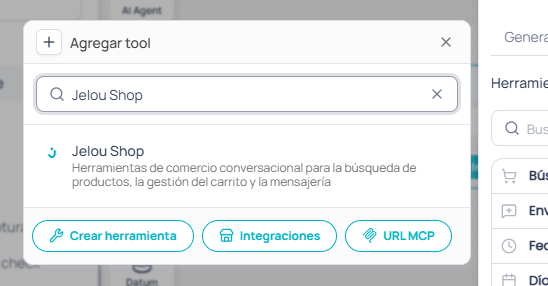
View prompt
View prompt
3
Access cart information
You can get the cart data at any time using:The
cartData object contains the following structure:View response example
View response example
When
enable_per_product_tax is active, tax_breakdown may contain multiple entries with different rates. Otherwise, all taxed items are grouped under the store’s global rate. For products with has_tax: false, tax_rate will be 0.Advantages
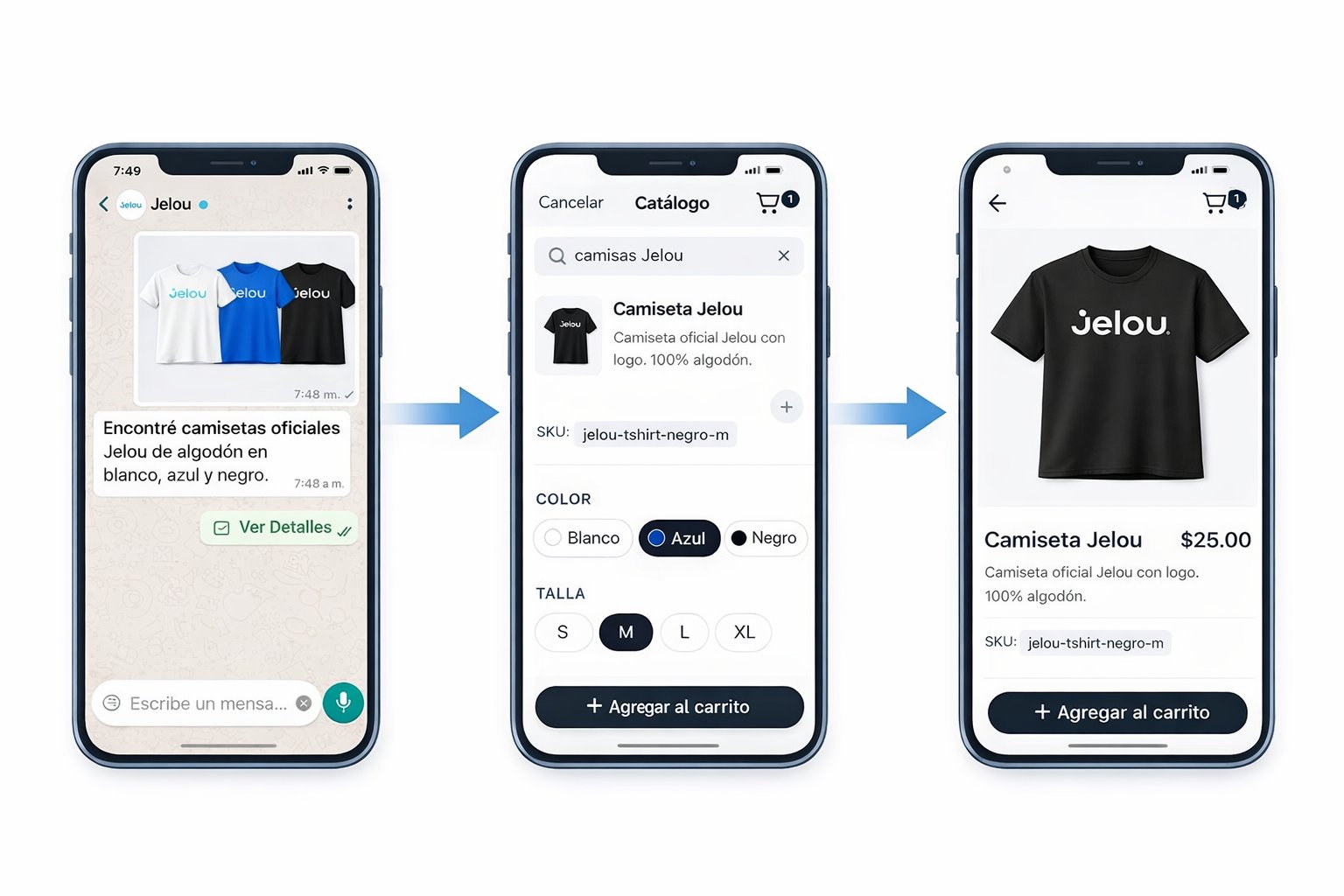
- You can view the full catalog without leaving WhatsApp.
- You can see more product details, including multiple images.
- You can select variants (size, color) within a single product.
- Internal filters are available to improve your search experience.
- You can make direct queries to the AI assistant.
- You can add products to the cart and view totals.
- You can complete the purchase in a continuous flow.
Purchase flow
1
Browse catalog
You open the webview and navigate through the available products.
2
Select product
You view the details, see the images, and select variants (size, color, etc.).
3
Add to cart
You add products to the cart and review the total.
4
Complete purchase
You finalize the order without leaving WhatsApp.