When do you need this guide?

You need it before connecting Payphone in Marketplace, when Brain Studio asks you for these two credentials:
  • Access Token
  • Store ID
Payphone uses two separate portals during this process:
  • Business Portal: where you manage users and stores
  • Developer Portal: where you create the application and obtain the Access Token
The Access Token and the Store ID are only available after Payphone approves the company request. You will not be able to complete the connection in Brain Studio until that approval occurs.
By the end of this guide you will have the Access Token and the Store ID ready to connect Payphone in Brain Studio.
When installing the integration in Brain Studio you will also need to complete two additional fields that do not come from Payphone:
  • IVA (VAT) — enter the percentage as an integer (example: 12)
  • Moneda (Currency) — must be USD

Before you begin

You need:
  1. An active Payphone Business account
  2. At least one active store in that account
  3. Access to the Payphone developer portal
If you don’t have an account yet, you can create one here: Portals you will use during this guide:

Steps to obtain credentials

1

Log in to Payphone Business

Enter the Payphone Business portal with your merchant account.From here you will:
  • create the developer user
  • assign it to the store you will use in the integration
2

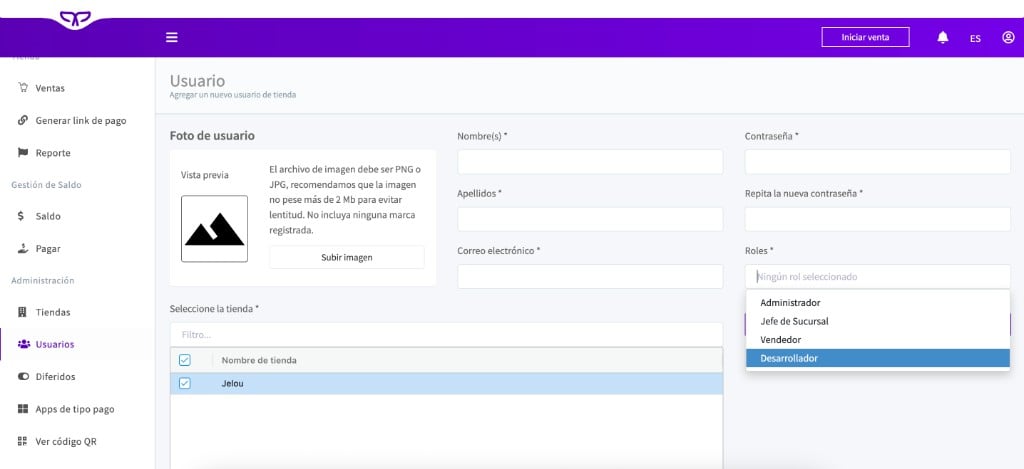
Create a developer user

In the Business portal side menu, go to Administration → Users and create a new user with a developer profile.Complete at least:
  • First name
  • Last name
  • Email address
  • Password
  • Assigned store
The developer user must be assigned to the correct store. If it is not assigned, you will not be able to operate the integration correctly or obtain the Store ID associated with that store.
New user form in Payphone Business with the Developer role selected and the store assigned
3

Log in to the developer portal

Using the developer user you just created, enter the Payphone Developer portal.Use this link:
This portal is independent from Payphone Business. You must sign in with the developer user, not with the main merchant account.
4

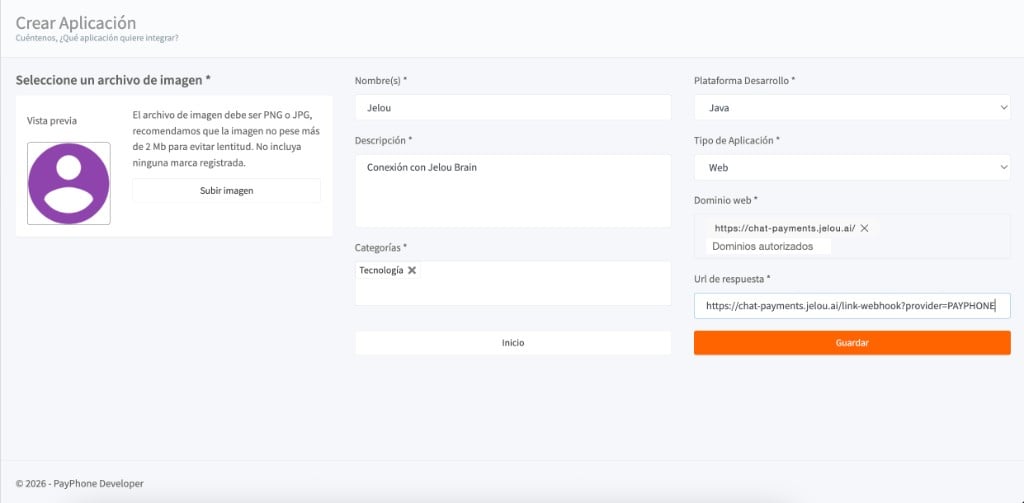
Create an application

Inside the developer portal, create a new application.Complete the basic configuration:
  • Application name
  • Description
  • Categories
  • Development platform: you can select Java
  • Application type: Web
Although the development platform field is present, for this integration what matters is that the application type is Web.
5

Configure domain and response URL

In the application configuration, enter these values exactly as shown:
FieldValue
Web domainhttps://chat-payments.jelou.ai/
Response URLhttps://chat-payments.jelou.ai/link-webhook?provider=PAYPHONE
These values are required for the Jelou integration. If you configure a different domain or URL, the checkout will not be able to return the payment status correctly to Brain Studio.
Create Application form in the Payphone Developer portal with Type Web, chat-payments.jelou.ai domain and response URL configured
6

Create the company request

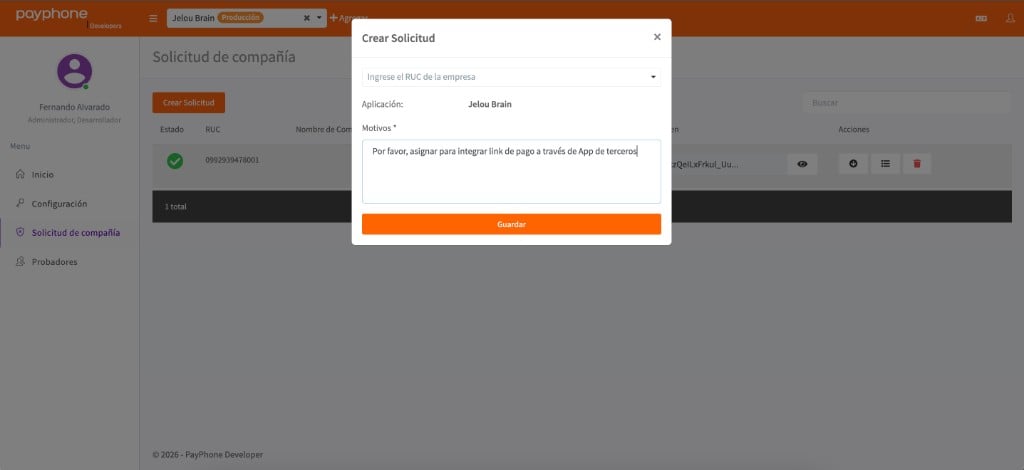
In the developer portal, go to Solicitud de compañía (Company Request).If you don’t have a request yet, create a new one and enter:
  • RUC of the company
  • Reason for the request
You can use a text like this:
Please assign to integrate payment link through third-party app.
Create Request modal in the Payphone Developer portal with RUC and Reason fields
You must wait for this request to be approved before the Access Token becomes available. Without approval, you will not be able to complete the connection in Brain Studio.
7

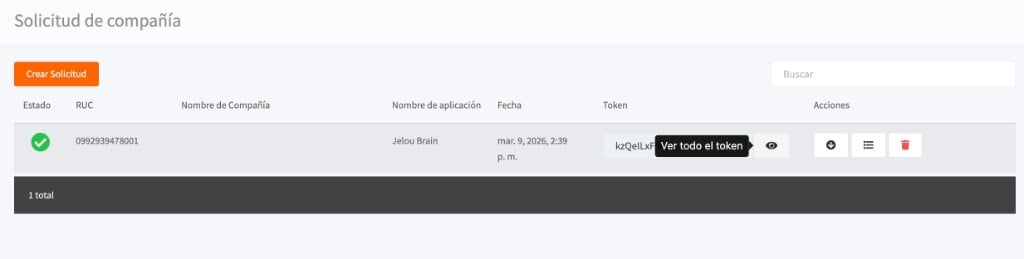
Get the Access Token

Once the request is approved, return to the developer portal and open the application you configured.From there you can copy the Access Token.
Company requests table in Payphone Developer showing approved status and the Ver todo el token button
8

Get the Store ID

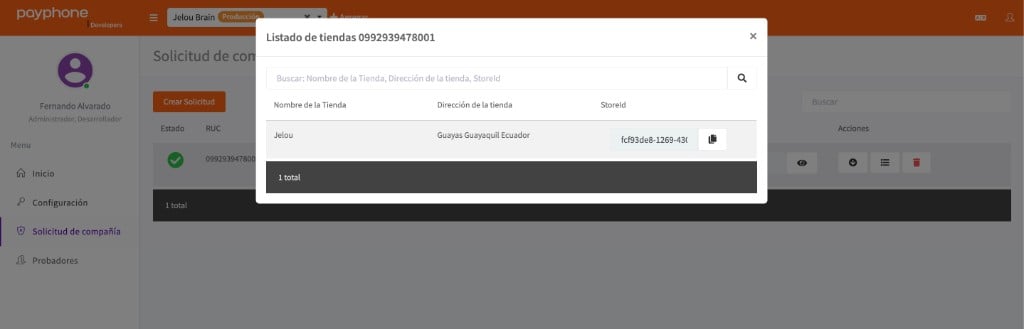
Inside the Payphone Developer portal, in the Solicitud de compañía (Company Request) section, click the action button of the approved request.The list of associated stores will open. Copy the StoreId of the store you assigned to the developer user.
Store list modal in Payphone Developer showing the StoreId column
Once you have the Access Token and the Store ID, you can proceed with the connection in Brain Studio.

Test and production mode

Payphone uses the same credentials (Access Token and Store ID) for testing and production.
  • You do not need to generate a separate token
  • The environment is controlled from the application configuration in the developer portal
Inside the Payphone Developer portal, you can switch between Production and Test using the environment selector in the application.This change affects how payments are processed, but does not change the credentials used in Brain Studio.
Before testing or going to production, make sure the environment selected in Payphone matches the scenario you are validating.

Troubleshooting

If you already submitted the request and still cannot see the Access Token:
  • check the request status in the developer portal
  • confirm that the RUC and reason were entered correctly
  • verify that the application has the correct domain and response URL configured
If approval takes longer than expected, contact Payphone support.
The Store ID is obtained from the Payphone Developer portal, in the Solicitud de compañía (Company Request) section.Click the action button of the approved request to see the list of associated stores and copy the StoreId of the store assigned to the developer user.
Verify that:
  • the company request has already been approved
  • you copied the full Access Token
  • the Store ID corresponds to the correct store
  • the developer user is assigned to that store

Best practices

  • Do not share the Access Token or the Store ID
  • If you need to rotate the token, do it from the developer portal
  • Avoid saving these credentials in public documents or repositories

Connect in Brain Studio

Connect Payphone in Marketplace using the Access Token and Store ID.

Usage and configuration

Configure the Payphone node and handle payment states inside the flow.